AI Image Upscaler
Upscale an image to twice its width and height with the Clarity upscaler, which adds texture instead of blur. For AI art, small photos and prints.
Up to 1024 x 1024 pixels.
- Model
- Clarity Upscaler · Clarity AI
- Cost
- 175 credits
A sample this tool made. Your results appear here when you press Generate.
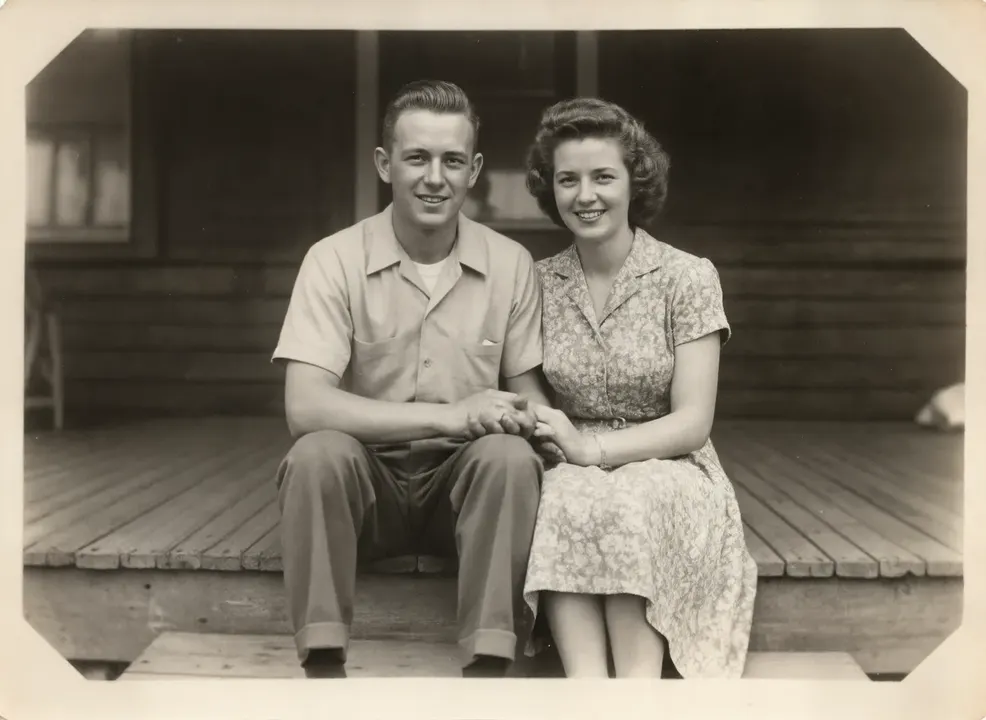
 Sample start photo
More AI tools
Prompt library
Prompts with the image each one made, ready to copy.
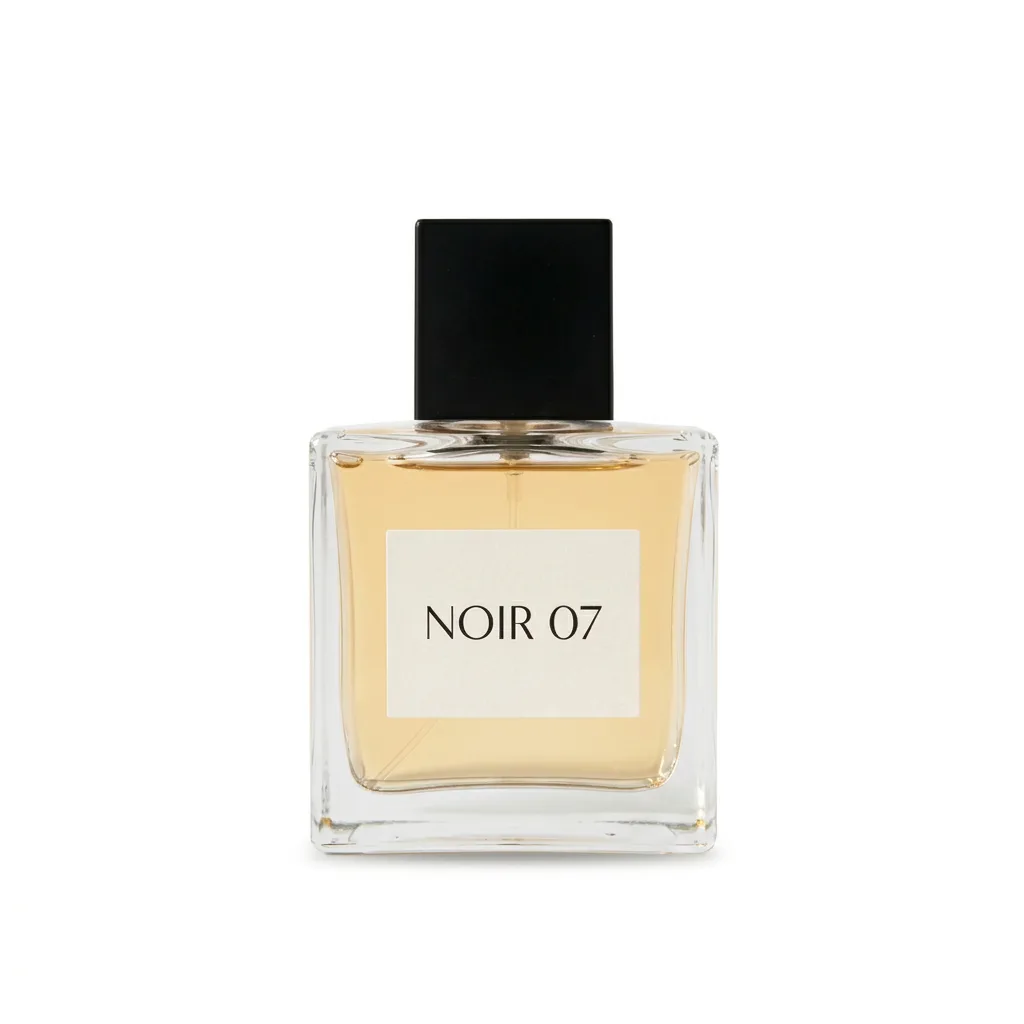 Nano Banana ProCut a product out onto a clean white background
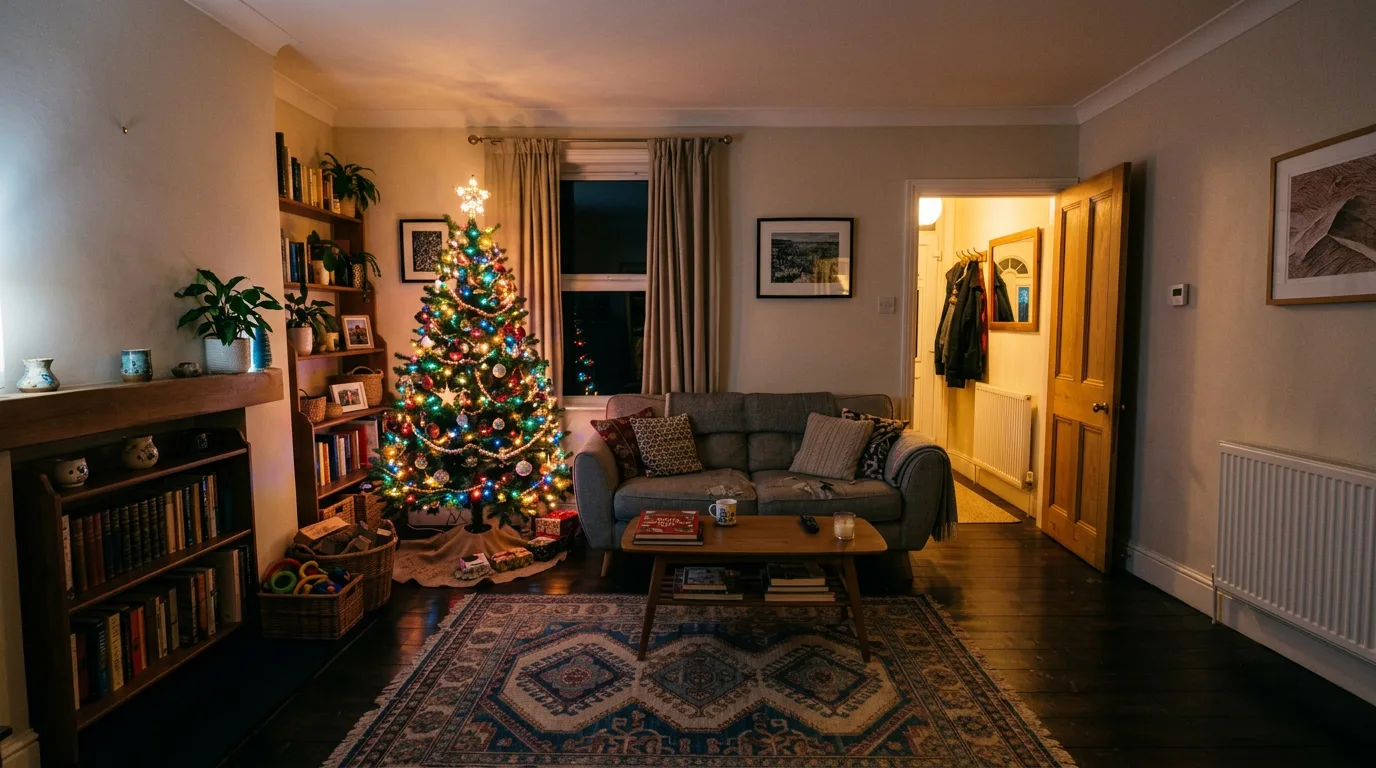 nano-banana-2Extend a photo beyond its edges
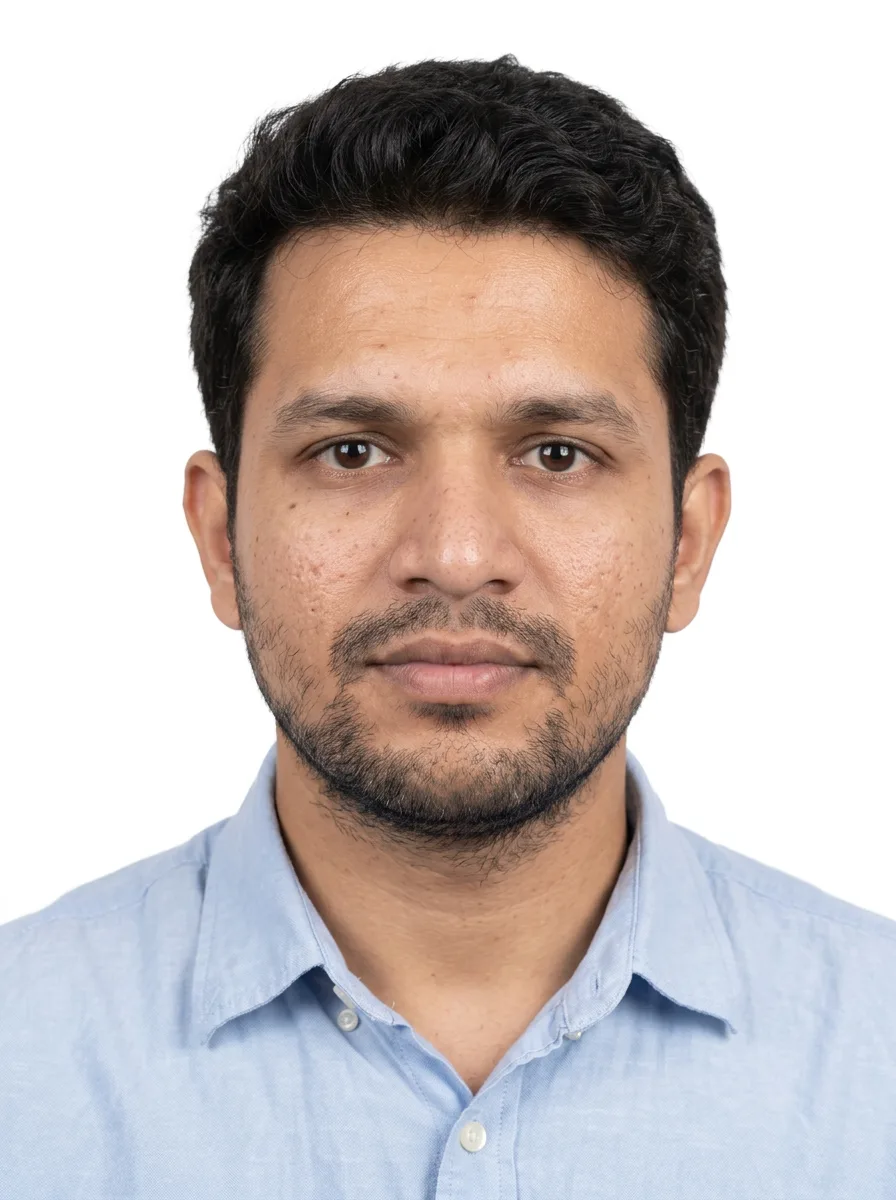 nano-banana-2Passport-style ID photo from a selfie
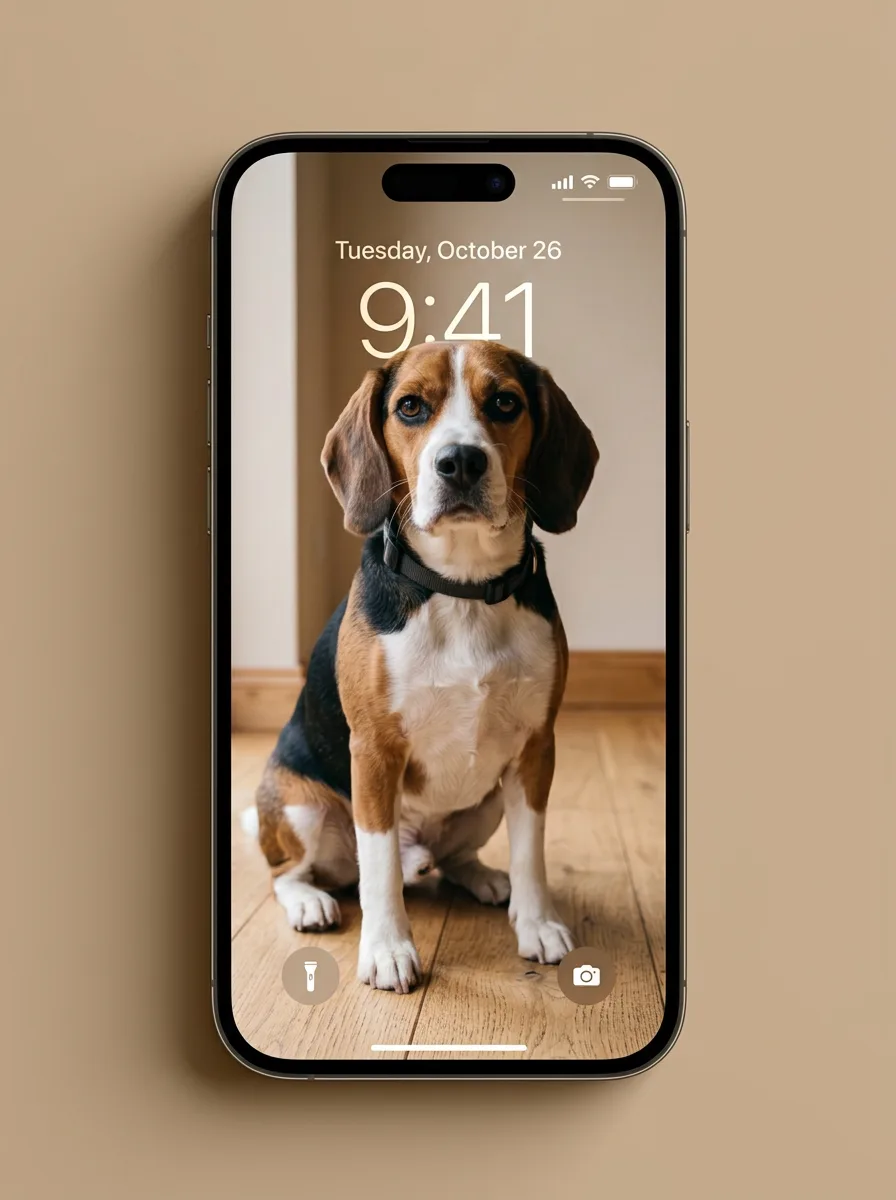 nano-banana-2Preview a photo as your phone lock screen
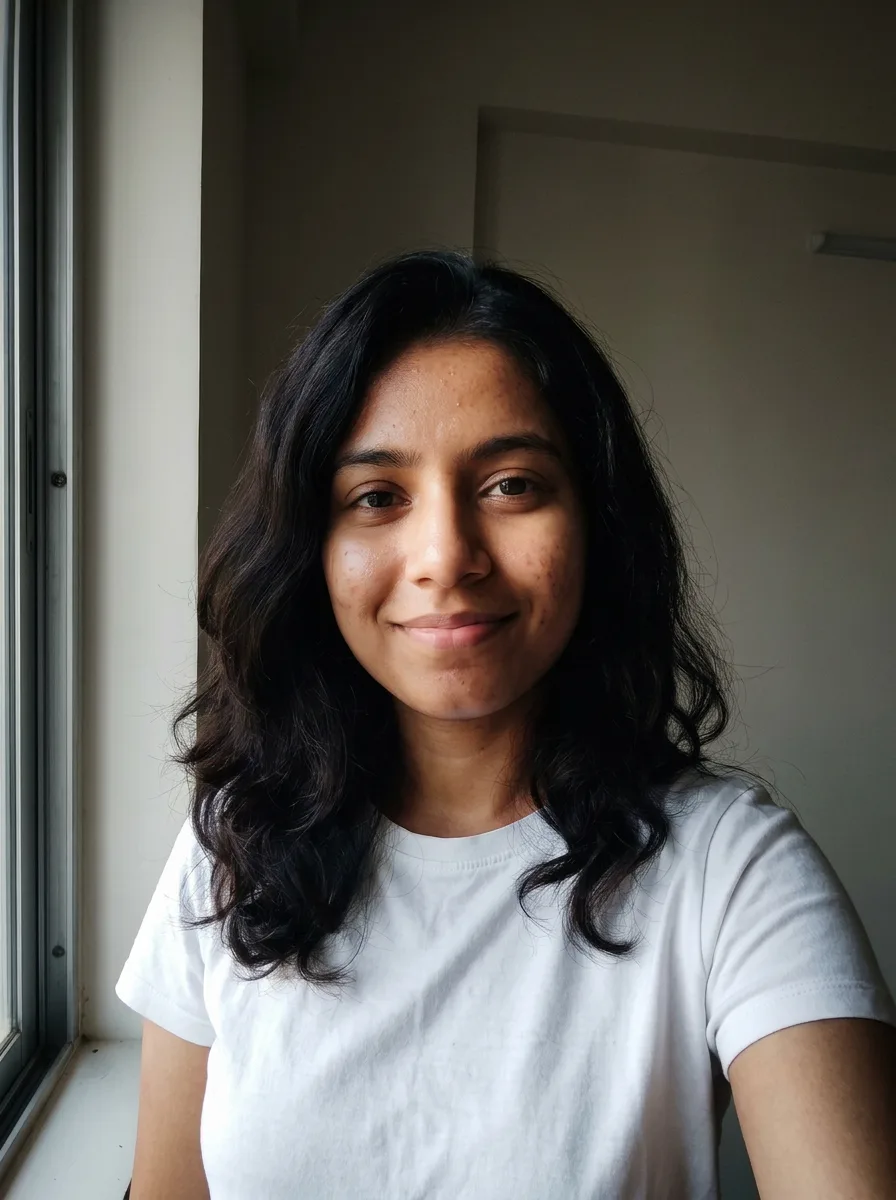 nano-banana-2Relight a portrait with a classic studio lighting setup
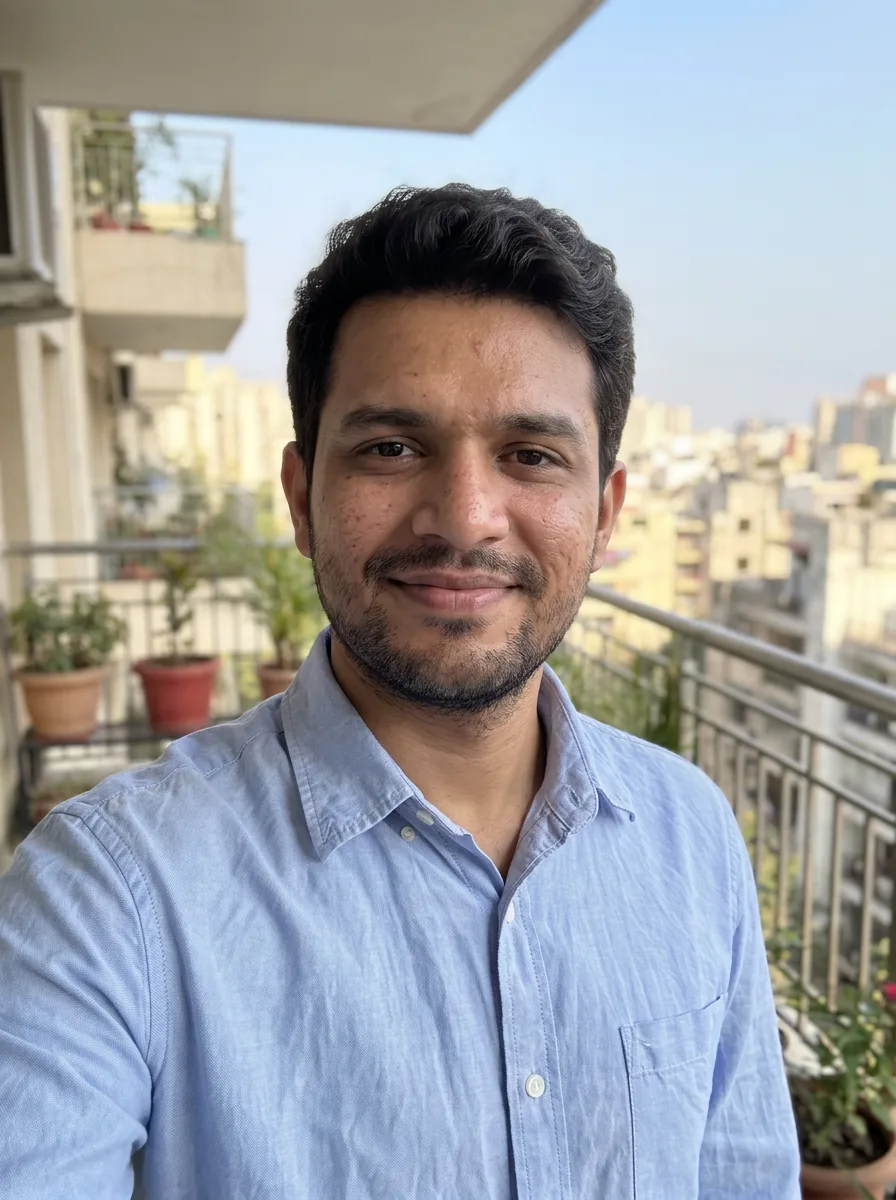 nano-banana-2Reshoot a phone photo with real camera settings
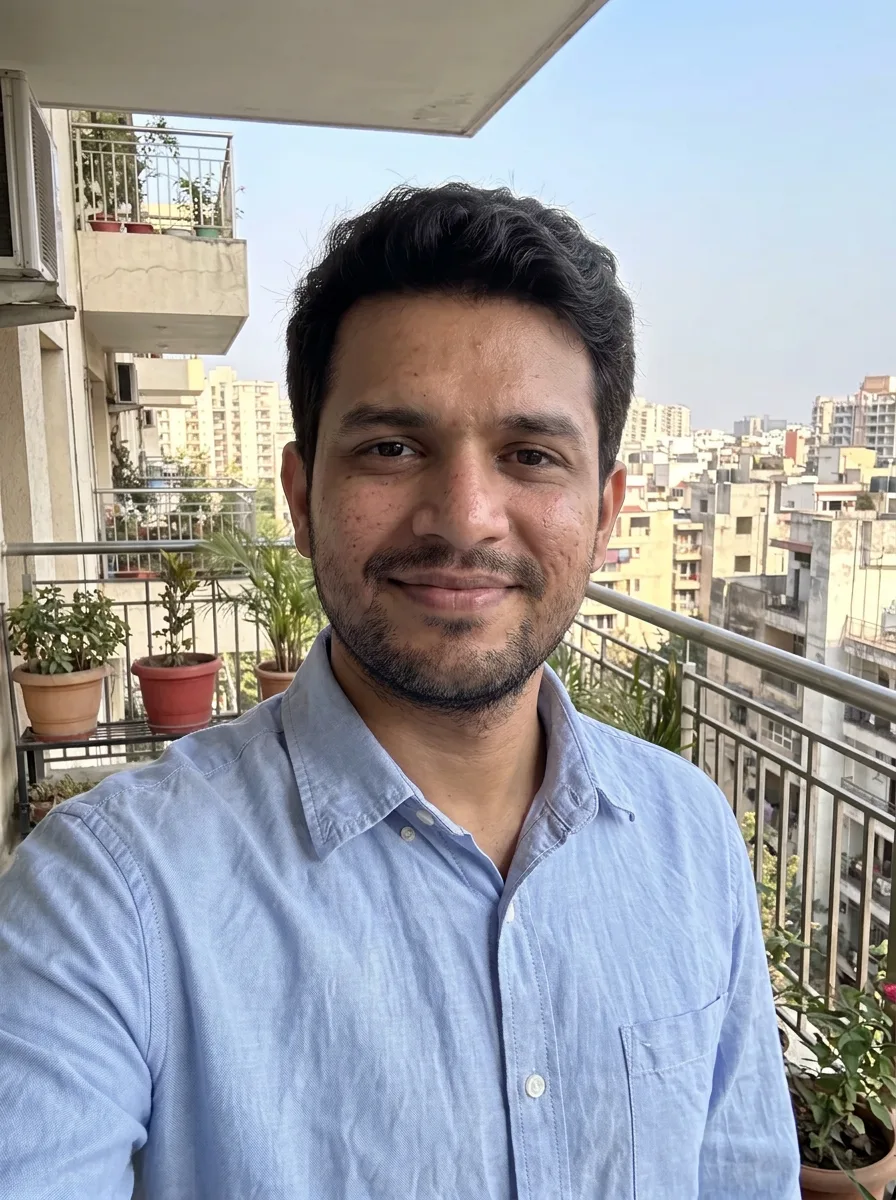 Nano Banana ProSharpen a blurry or low-resolution photo
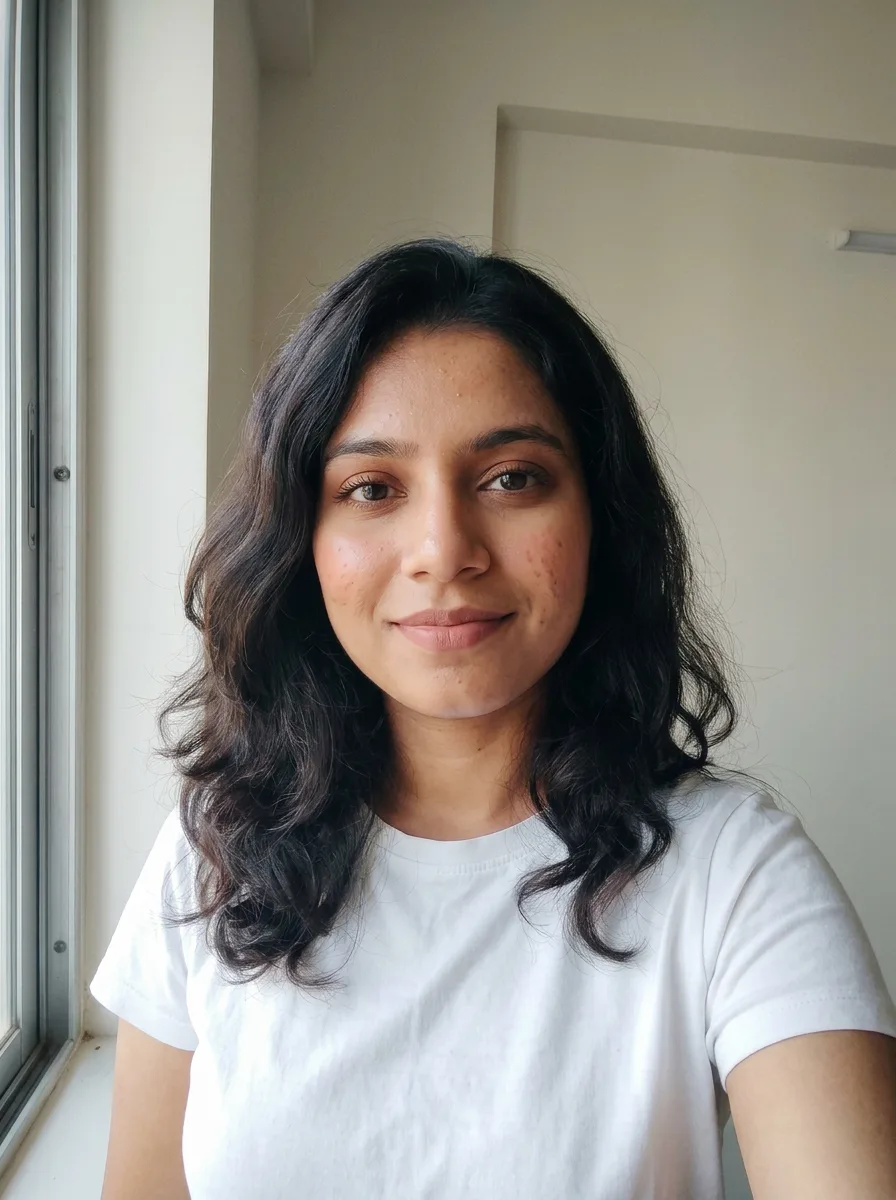 nano-banana-2Try a makeup look on your own photo
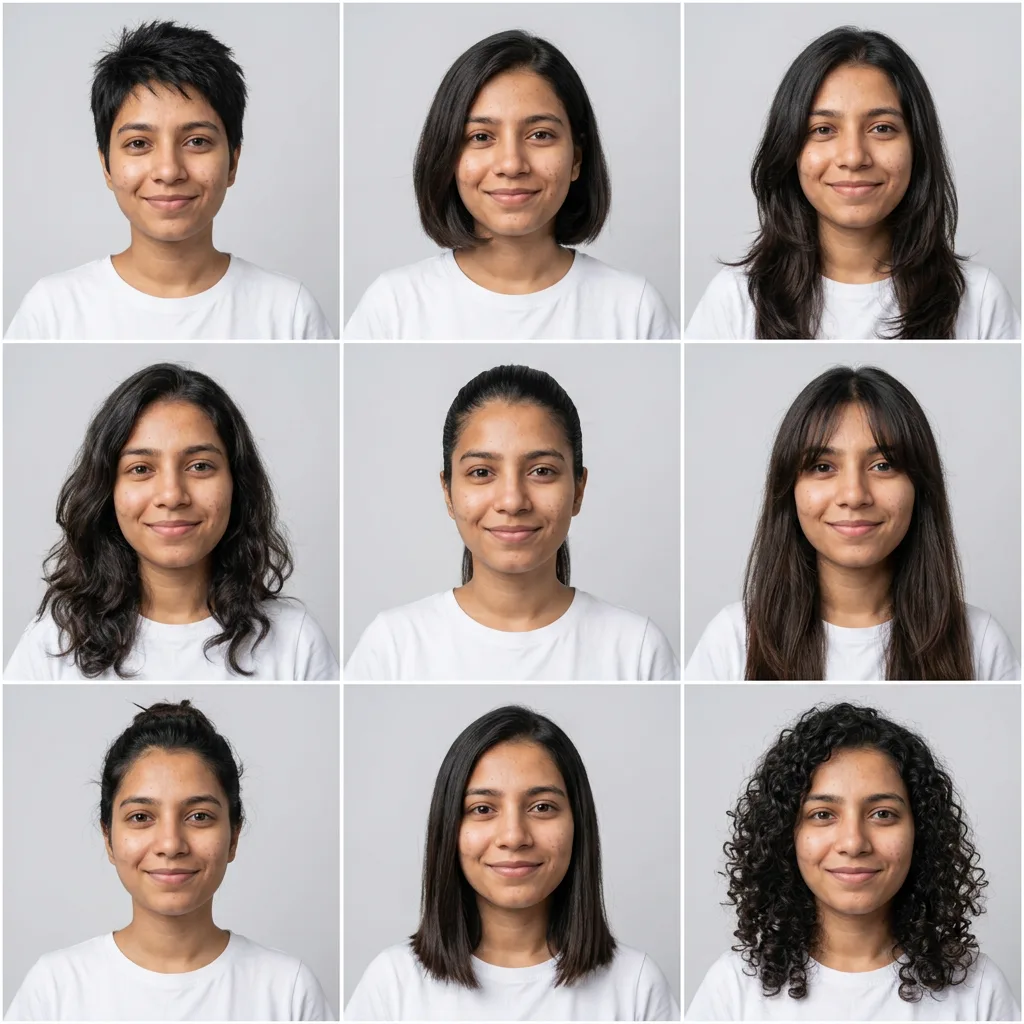 nano-banana-2Try nine hairstyles on your own face
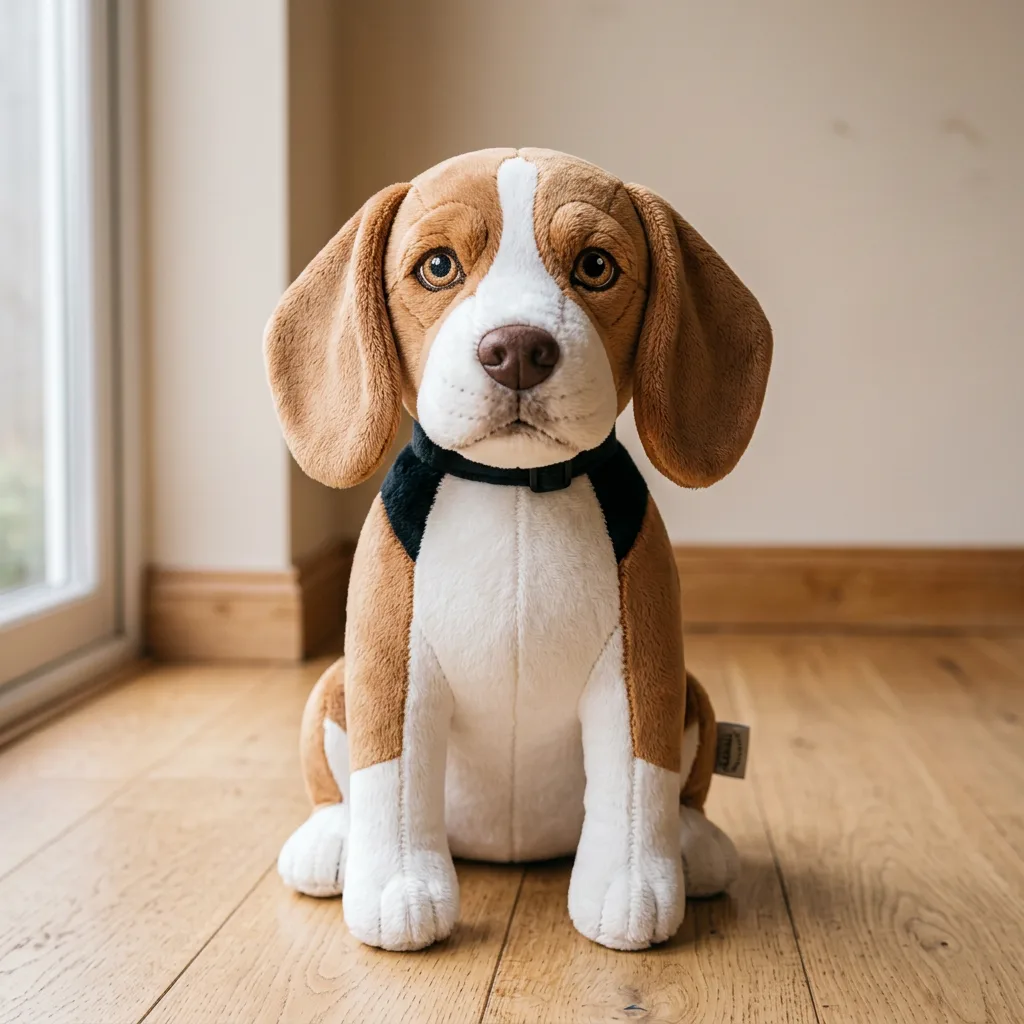 nano-banana-2Turn your pet into a plush toy
What is AI Image Upscaler?
Stretching a small image makes it blurry because the new pixels carry no new information. An AI upscaler fills them with detail that fits the picture: pores and stubble on a face, weave in fabric, leaves on a tree. This page runs the Clarity upscaler, which doubles the width and height of your image.It takes images up to 1024 x 1024 pixels (about one megapixel), which covers most AI generations and web images. A larger upload is turned away before any credits are spent.
What people make with it
- Print-ready AI art and posters
- Sharper product and listing photos
- Larger versions of small web images
- Full-size banners from square generations
Why use Image Upscaler?
- Runs on Clarity Upscaler
- Clarity Upscaler by Clarity AI. Creative upscaling that adds real detail instead of blur.
- The cost is shown before you run it
- 175 credits per image on Clarity Upscaler. The Generate button shows the exact credits first, so nothing is spent by surprise.
- Failed generations are refunded
- When a generation fails, its credits go back to your balance automatically.
- One credit pool for every tool
- The same credits work across every studio tool and model, and the prompt tools include free prompts every day.
How to use Image Upscaler
Three steps from an idea to a finished result.
- 11. Upload the image, up to 1024 x 1024 pixels
- 22. Add a short description if you like, so the upscaler knows what detail to add
- 33. Generate and download the image at twice the size
Tips for better results
- A few words help: "watercolor illustration" keeps the paper texture, "studio product photo" keeps surfaces smooth.
- Upscale the final version, not a draft. Most edits after upscaling return a smaller image again.
- Fix light and color first with the photo enhancer, then upscale.
- Crop to the part you need before uploading. It keeps the image under the limit and puts the added detail where it counts.
Frequently asked questions
What people ask before they use Image Upscaler.
1What size is the upscaled image?
2What is the upload limit?
3Does the description matter?
4Can it fix a blurry photo?
5How much does it cost?
Try Image Upscaler now
175 credits per image on Clarity Upscaler. You see the exact credits before you generate.
Open Image Upscaler