Video Prompt Generator
Describe the shot, get a prompt with the motion, camera and sound the model needs.
More AI tools


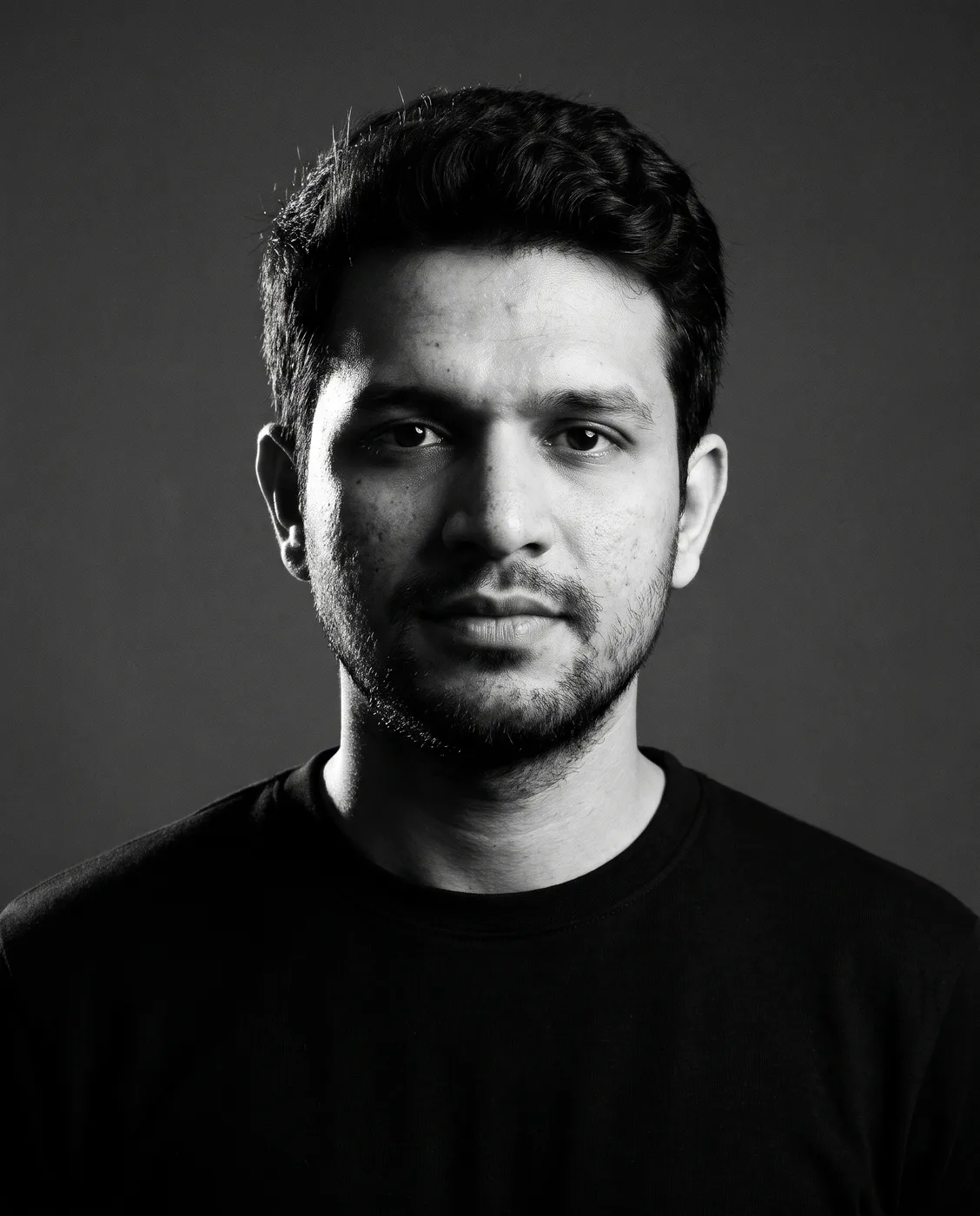

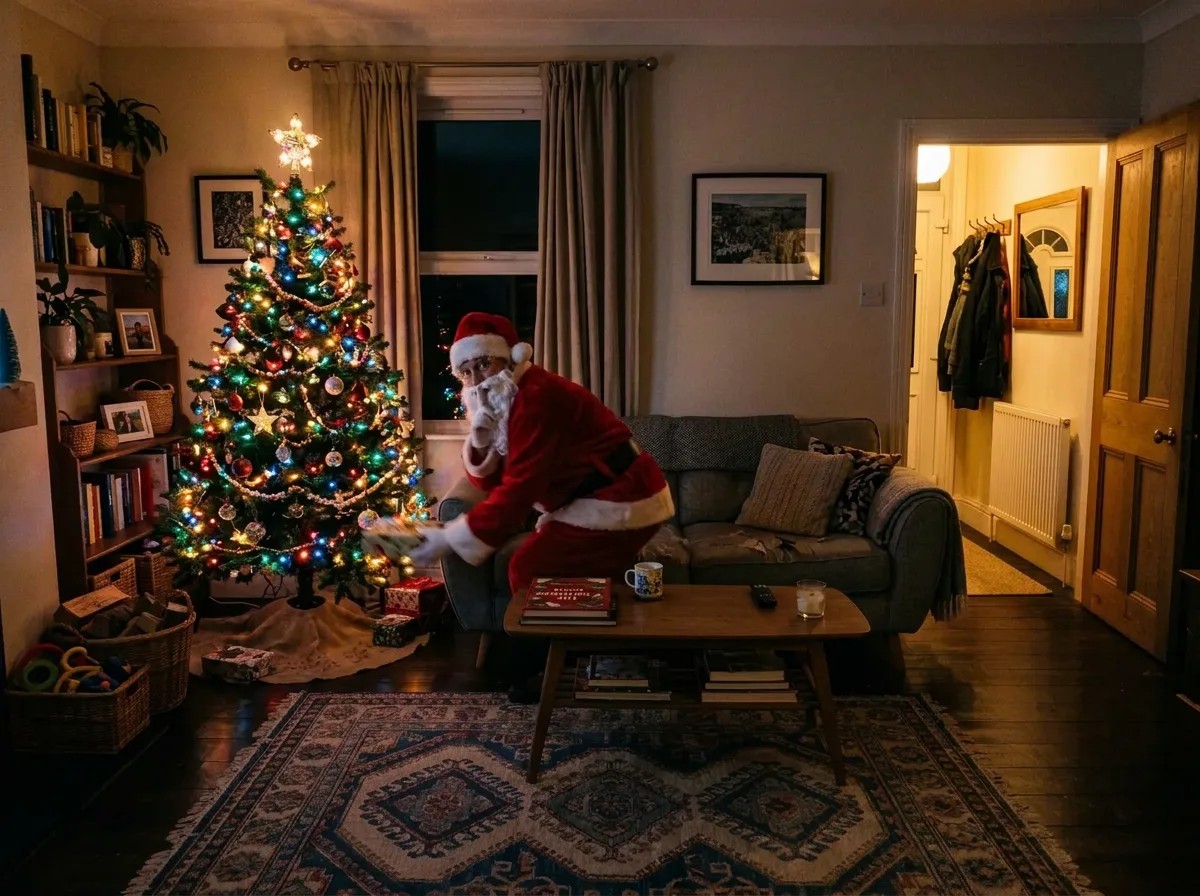

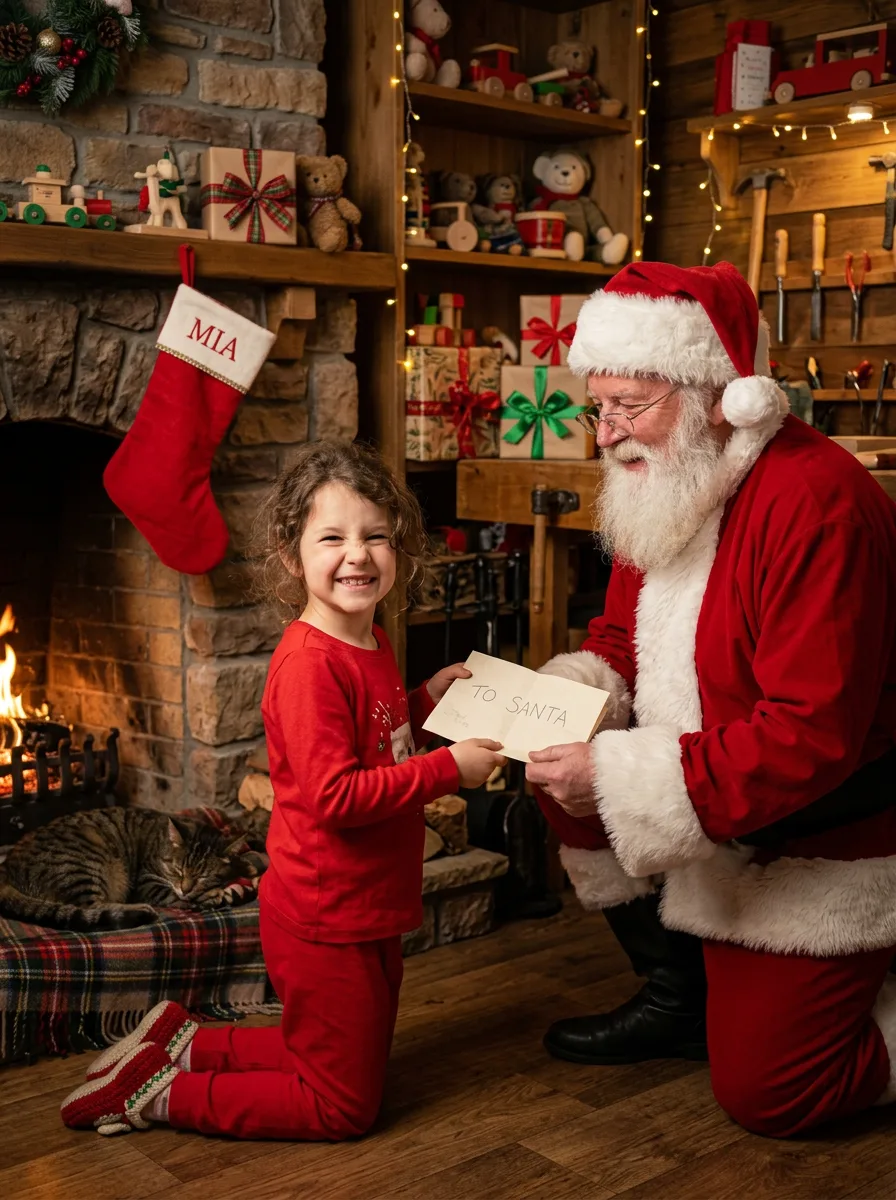
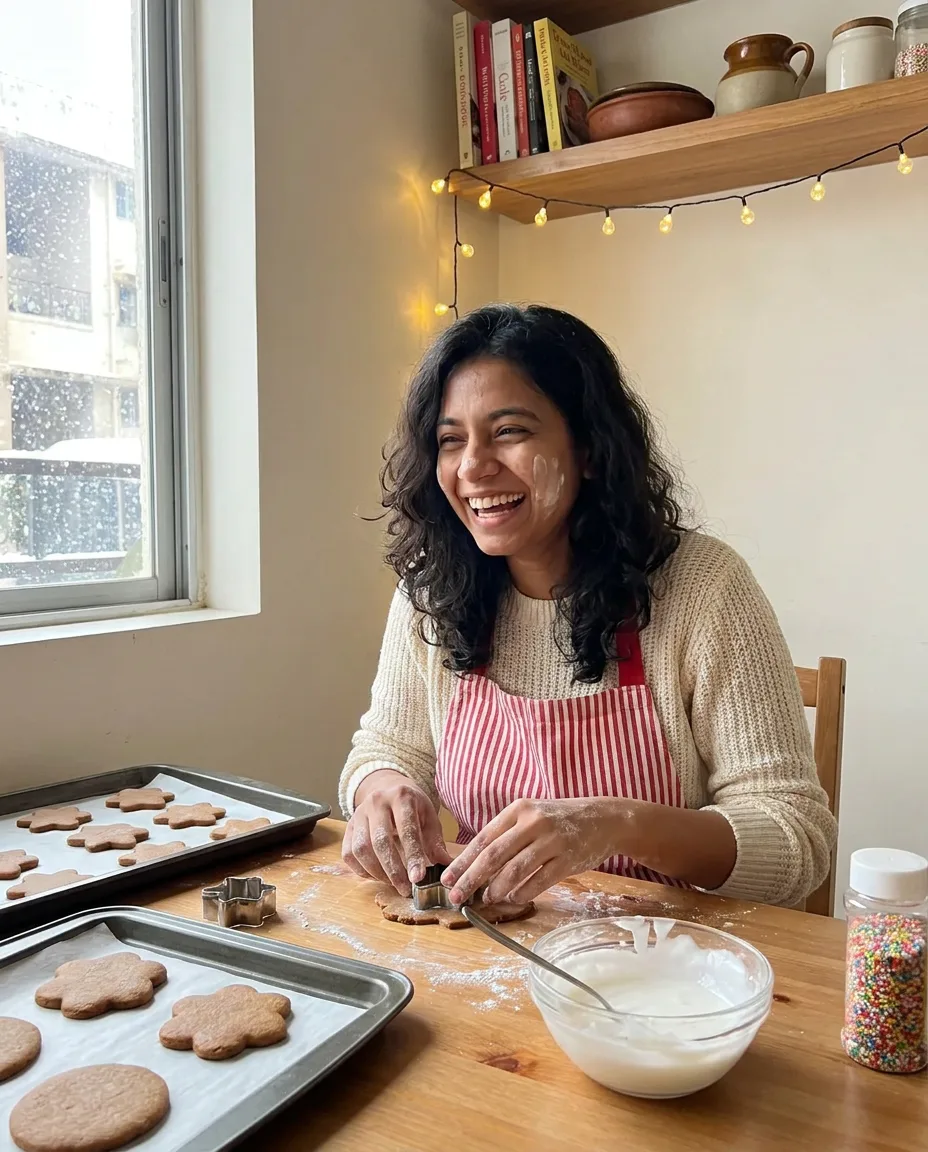


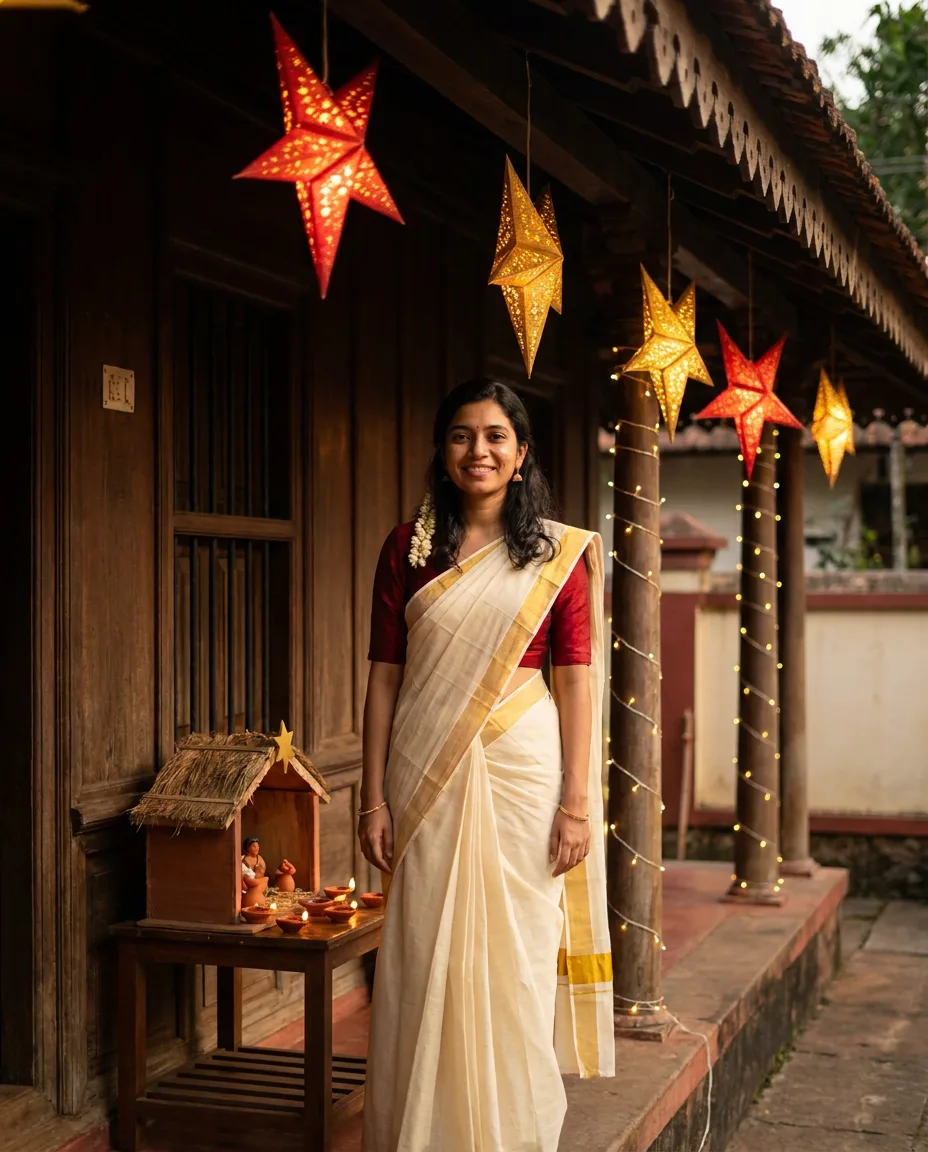
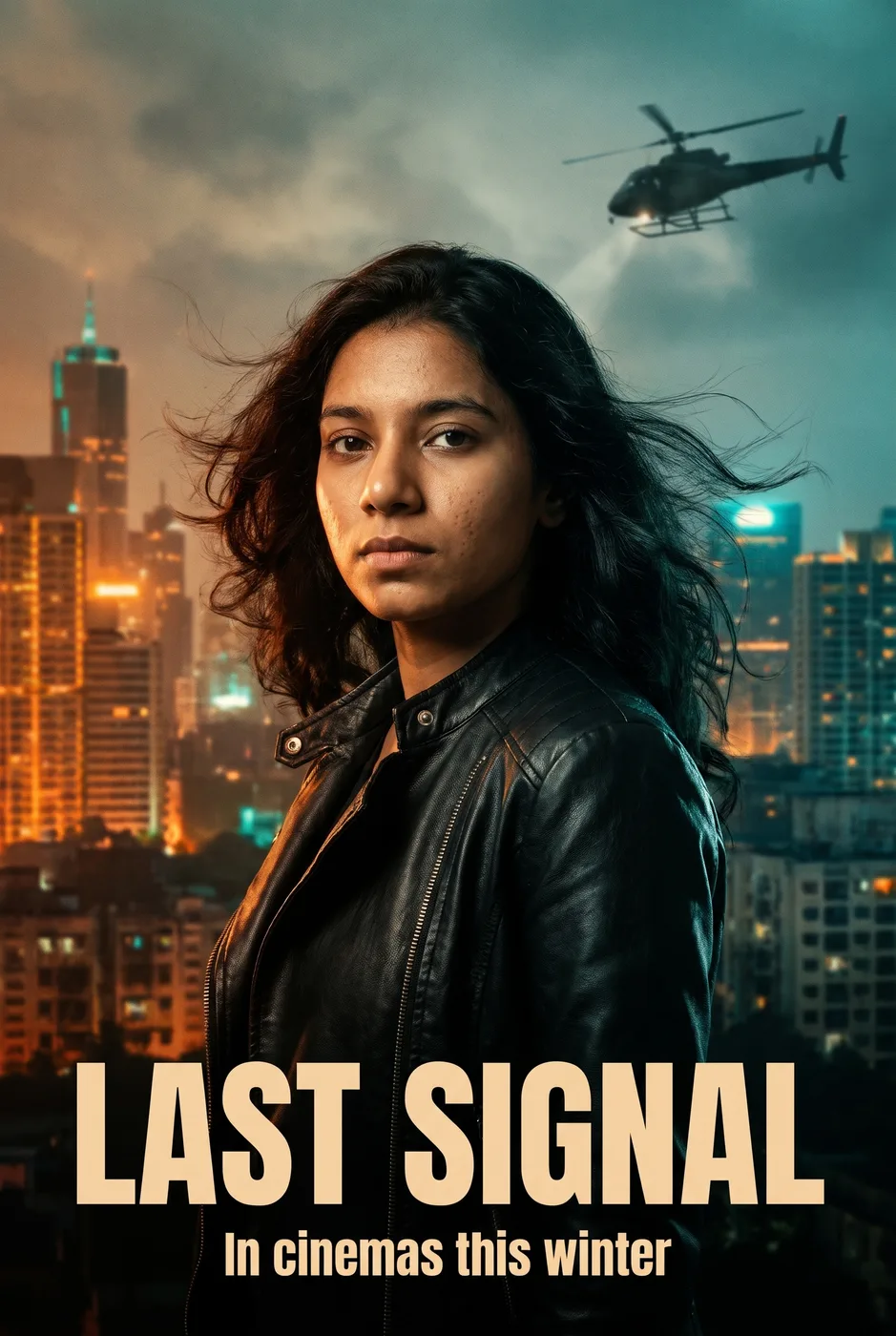
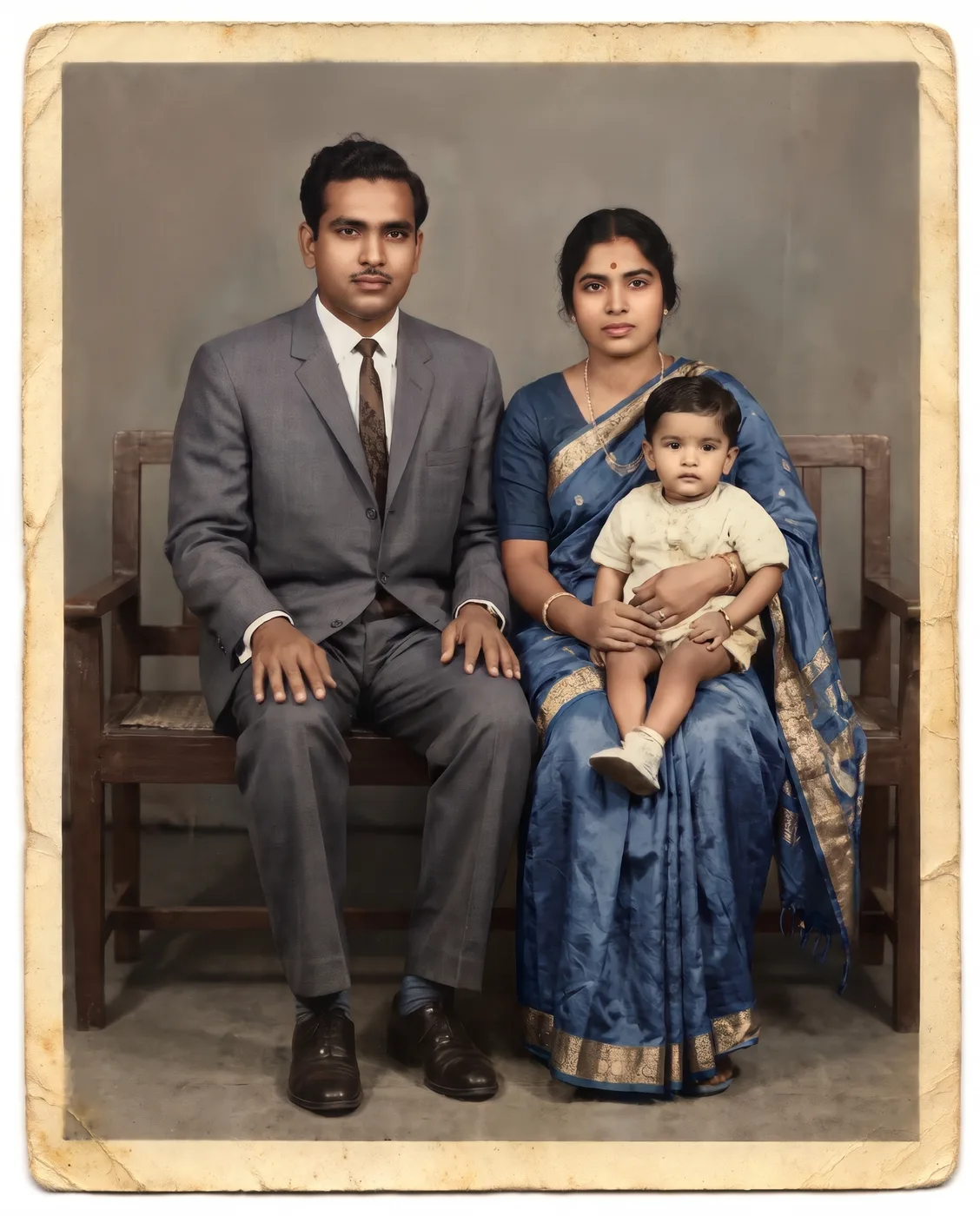

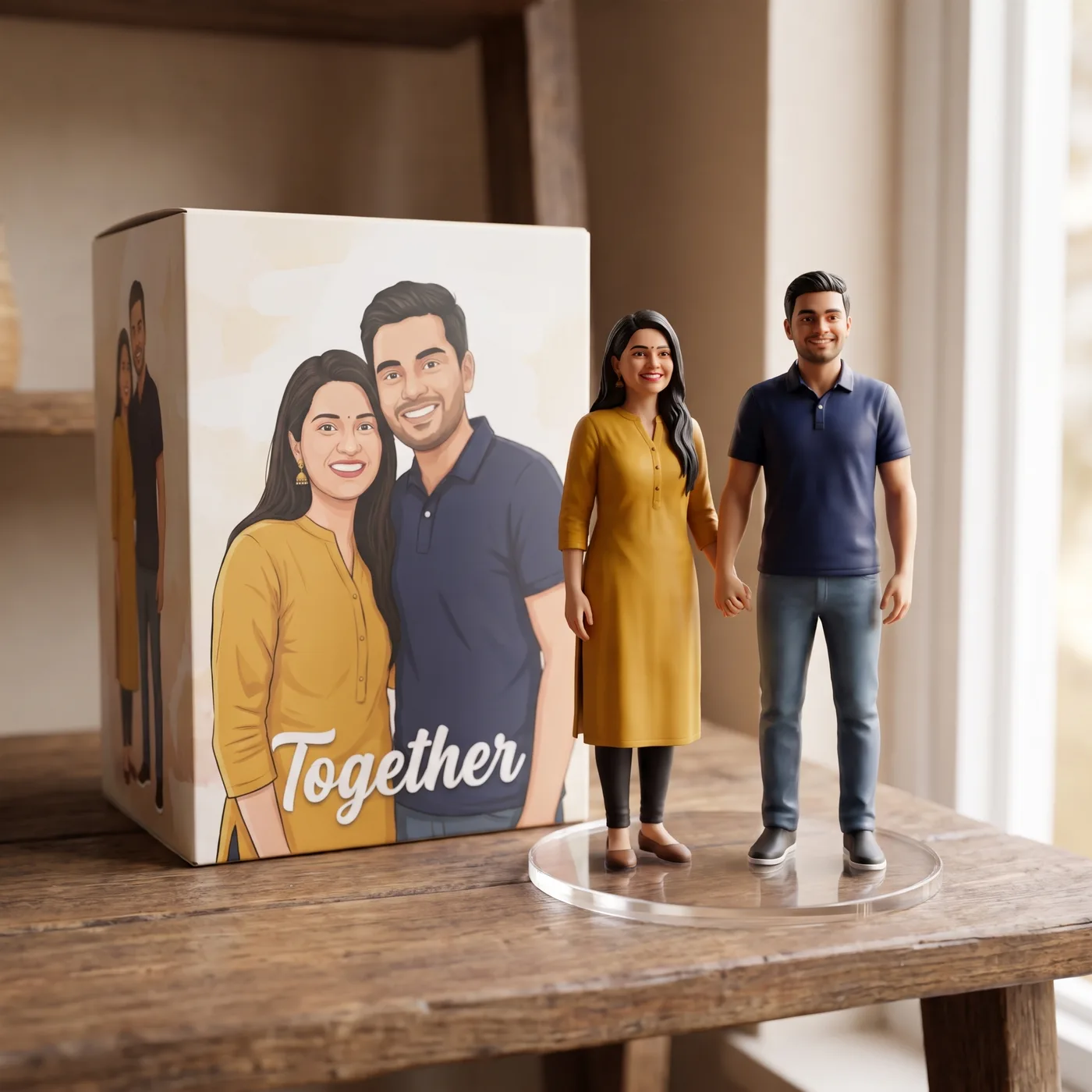









How to use the video prompt generator
Say who is in the shot and what happens. The generator adds the camera, lens, light, duration and, for Veo, the audio.
- 101Pick the video modelChoose Veo, Seedance, Sora, Kling and Runway. Veo gets an audio line, Seedance gets named shots, Runway starts with the camera move.
- 202Describe the shotWho, what happens and where. Under Options set the duration (5 sec, 8 sec, 10 sec), a camera move and a style.
- 303Refine, copy or renderMake it shorter or more detailed, try it for another model, then copy it or run it in the studio.
What is the video prompt generator?
It turns a one-line idea into a shot description a video model can follow: subject and action, setting, camera move, lens, light, colour and duration.
015 video models
Veo: shot, action, camera, lens, light and audio cues. Seedance: subject, motion and camera, cuts named. Sora: scene by scene with camera and physical detail. Kling: short subject, motion and camera lines. Runway: camera move first, then subject and scene.
02Camera and duration as options
Pick a camera move (auto, static, dolly in, orbit, handheld and drone), a style (cinematic, documentary, animation and product ad) and the length in seconds.
03Sound written in
For Veo the prompt ends with an Audio line for ambience, effects and dialogue in quotes, because Veo renders sound with the picture.
04Animate a start frame
Already have the first frame? Start frame opens the studio's image to video mode, where your prompt drives the motion.
Video prompt generator FAQ
Which models it writes for, what goes into a good video prompt, and how to run it.