AI Object Remover
Name what should go, such as a passer-by, a sign or a cable, and the model takes it out and rebuilds the background behind it. You describe it in words instead of painting a mask.
Remove from this photo and rebuild the area behind it so it blends into the scene.
PNG, JPEG or WebP up to 12 MB.
- Model
- FLUX.1 Kontext [pro] · Black Forest Labs
- Cost
- 60 credits
Prompt sent to the model
A sample this tool made. Your results appear here when you press Generate.
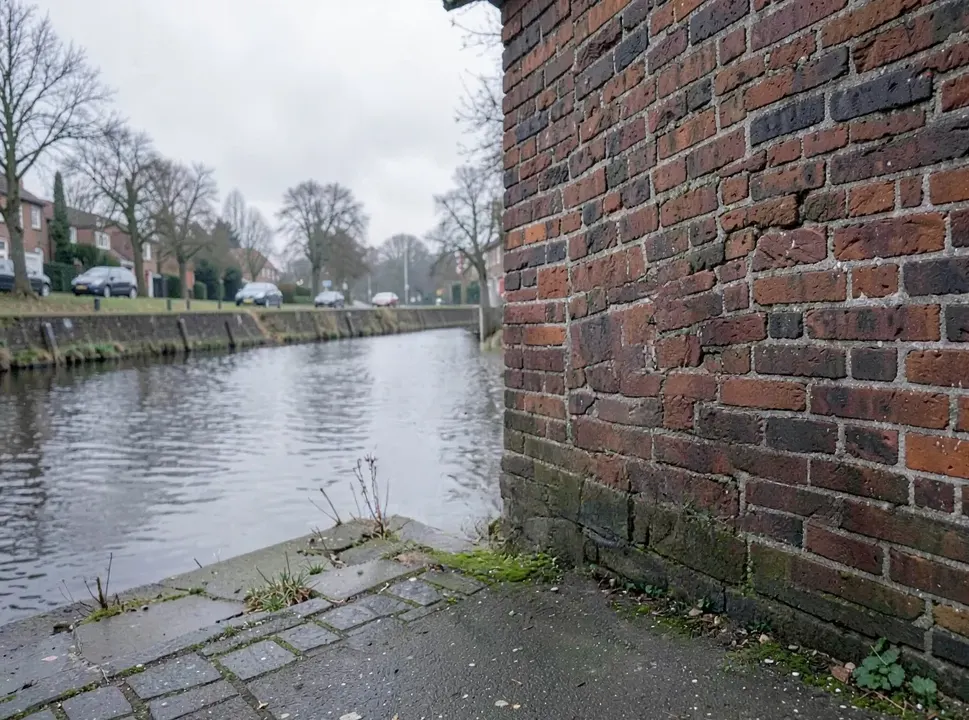
 Sample start photo
More AI tools
Prompt library
Prompts with the image each one made, ready to copy.
 Nano Banana ProCut a product out onto a clean white background
 nano-banana-2Extend a photo beyond its edges
 nano-banana-2Passport-style ID photo from a selfie
 nano-banana-2Preview a photo as your phone lock screen
 nano-banana-2Relight a portrait with a classic studio lighting setup
 nano-banana-2Reshoot a phone photo with real camera settings
 Nano Banana ProSharpen a blurry or low-resolution photo
 nano-banana-2Try a makeup look on your own photo
 nano-banana-2Try nine hairstyles on your own face
 nano-banana-2Turn your pet into a plush toy
What is AI Object Remover?
Retouching by hand means painting over the object pixel by pixel. Here you name it instead. Upload the photo, say what should go and where it is, and the model takes it out and rebuilds what was behind it: the wall, the sand, the sky. The default model, FLUX.1 Kontext [pro], is built for local edits, so the rest of the picture is left alone.For bigger changes, such as a new outfit or different weather, use the AI photo editor. To cut the subject out onto a transparent background, use the background remover.
What people make with it
- Holiday shots free of strangers
- Listing photos with the bins and parked cars gone
- Clean product shots with stands and tags removed
- Group photos without a photobomber
Why use Object Remover?
- 5 models to choose from
- Starts on FLUX.1 Kontext [pro] by Black Forest Labs. Also works with Nano Banana, Nano Banana Pro, GPT Image 2, Qwen Image 3.
- The cost is shown before you run it
- 60 credits per image on FLUX.1 Kontext [pro]. The Generate button shows the exact credits first, so nothing is spent by surprise.
- Failed generations are refunded
- When a generation fails, its credits go back to your balance automatically.
- One credit pool for every tool
- The same credits work across every studio tool and model, and the prompt tools include free prompts every day.
How to use Object Remover
Three steps from an idea to a finished result.
- 11. Add the photo you want to clean up
- 22. Write what to remove and where it sits in the frame
- 33. Generate and check the patched area against the untouched version
Tips for better results
- Say where it is and what sets it apart: "the white van parked at the far left edge" leaves no doubt.
- Work through several objects in turn: remove one, then run the result again for the next.
- Mention what belongs to the object: "the lamp post and its shadow", "the person and their reflection in the window".
- Leftover smudge? Run the cleaned photo through once more, and if that does not clear it, compare with GPT Image 2.
- An object that fills most of the frame leaves a lot to invent. Crop the photo first if you can.
Frequently asked questions
What people ask before they use Object Remover.
1How do I tell it what to remove?
2Which model does the removing?
3Can it remove a person?
4Does the rest of the photo change?
5Can I remove a watermark?
6How much does it cost?
Try Object Remover now
60 credits per image on FLUX.1 Kontext [pro]. You see the exact credits before you generate.
Open Object Remover