Image to Video AI
Turn one still into a short MP4: write how it should move, then pick Kling 3.0, Veo 3.1, Seedance 2.0, Hailuo or Wan. The clip opens on your exact picture.
PNG, JPEG or WebP up to 12 MB. The clip opens on this picture.
- Model
- Kling 3.0 Standard · Kuaishou
- Cost
- 950 credits
A sample this tool made. Your results appear here when you press Generate.
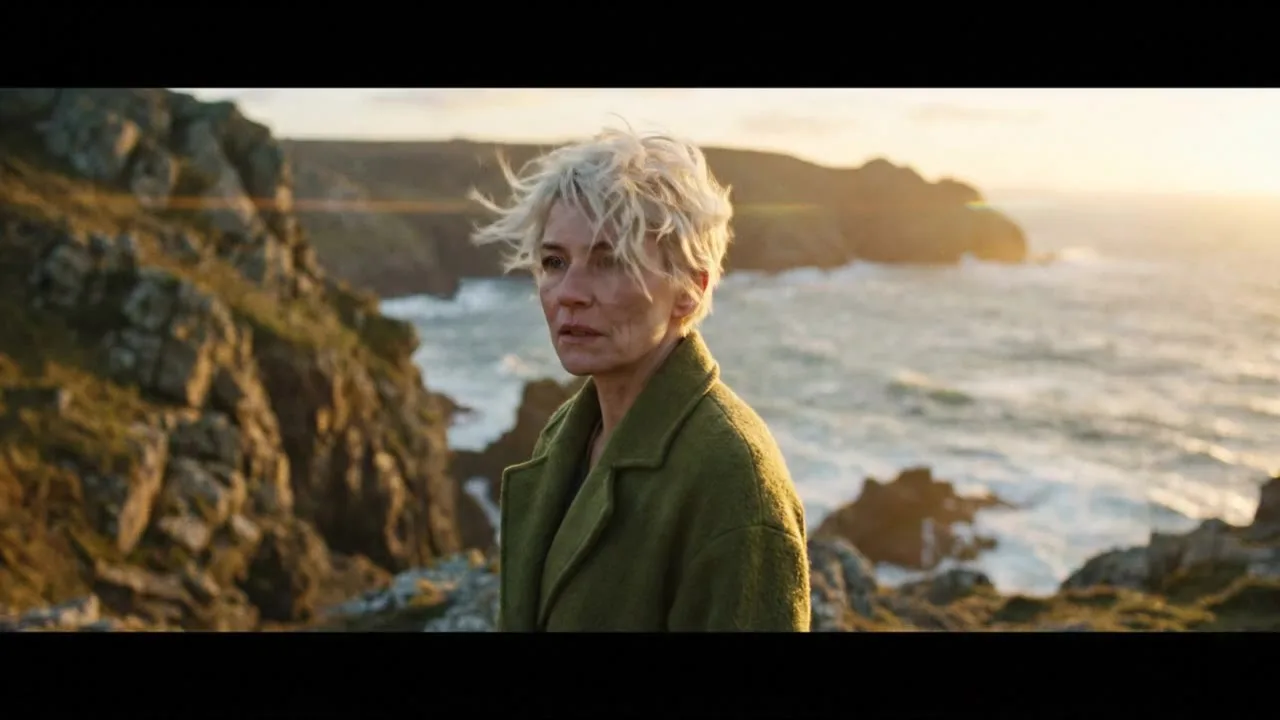
 Sample start photoVideo
More AI tools
Prompt library
Prompts with the image each one made, ready to copy.
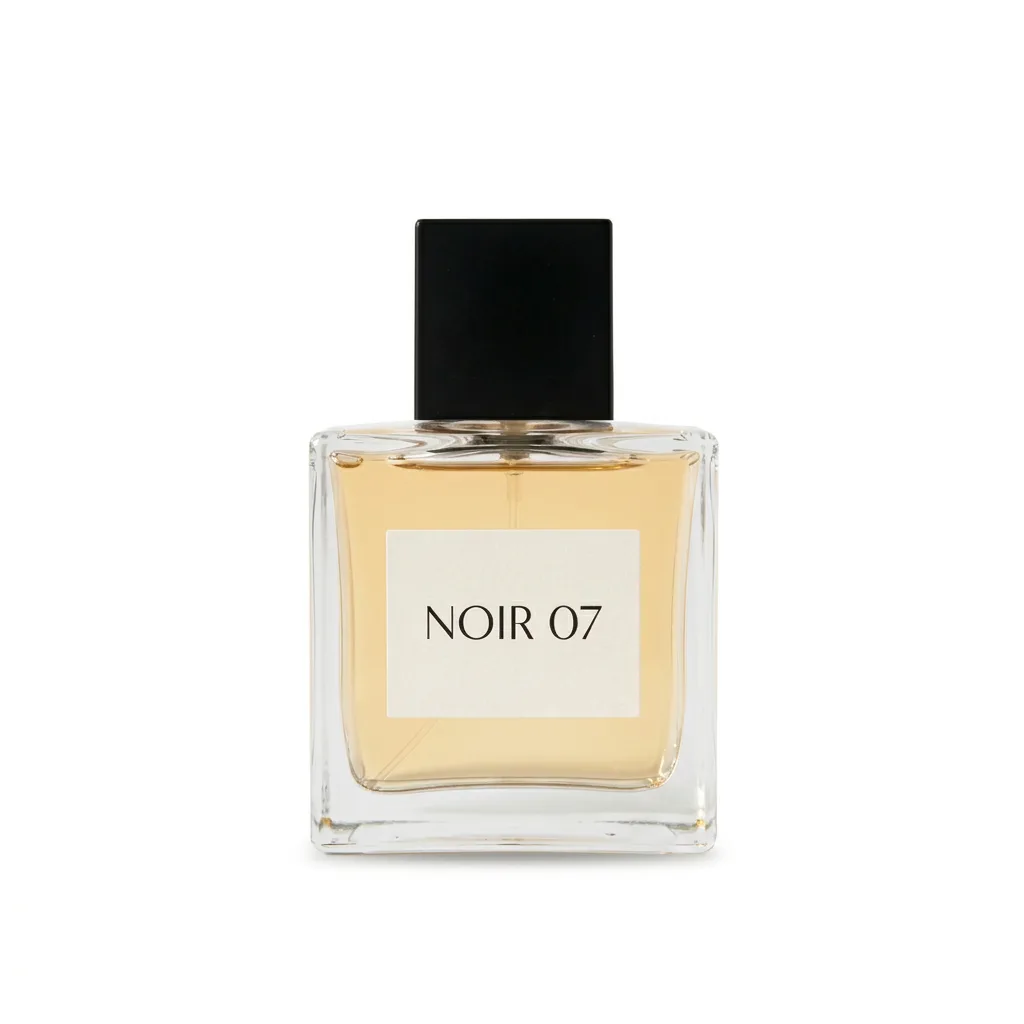 Nano Banana ProCut a product out onto a clean white background
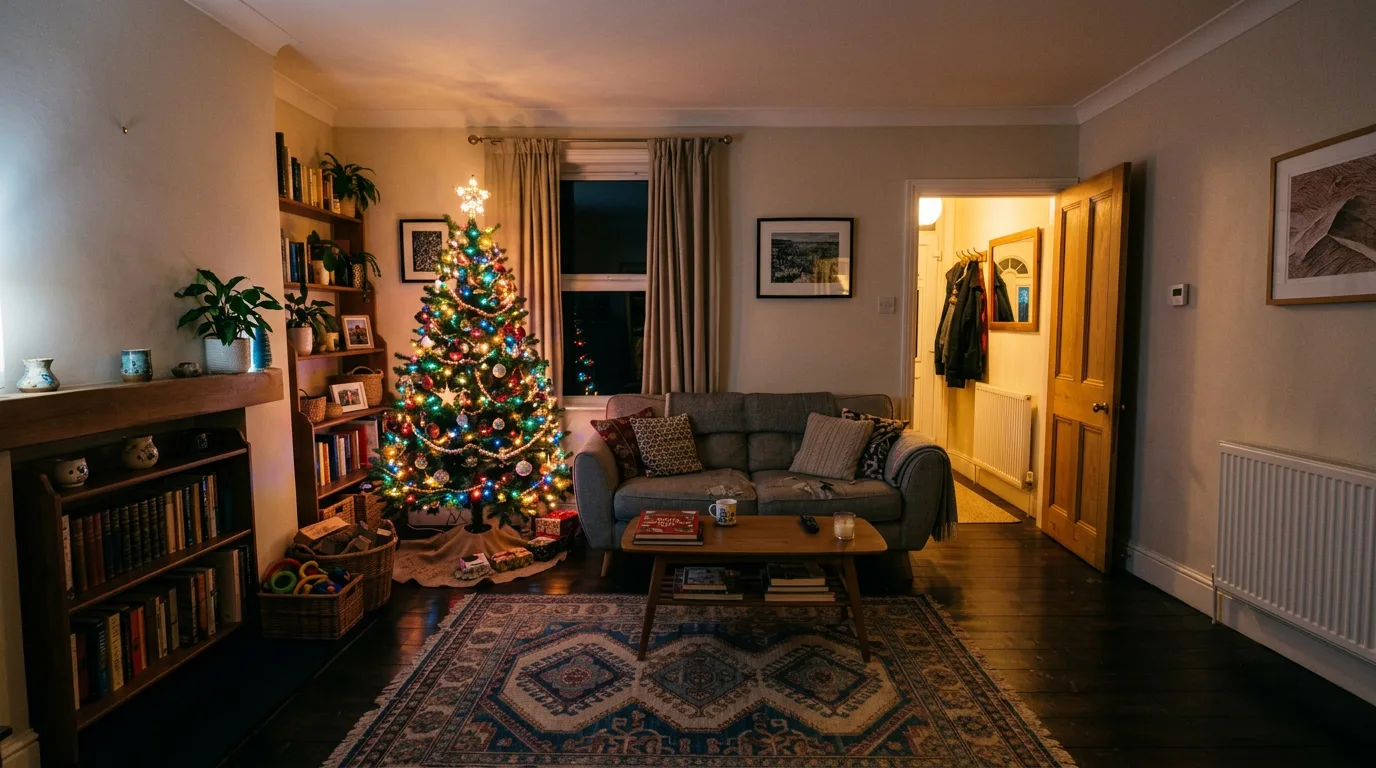 nano-banana-2Extend a photo beyond its edges
 nano-banana-2Passport-style ID photo from a selfie
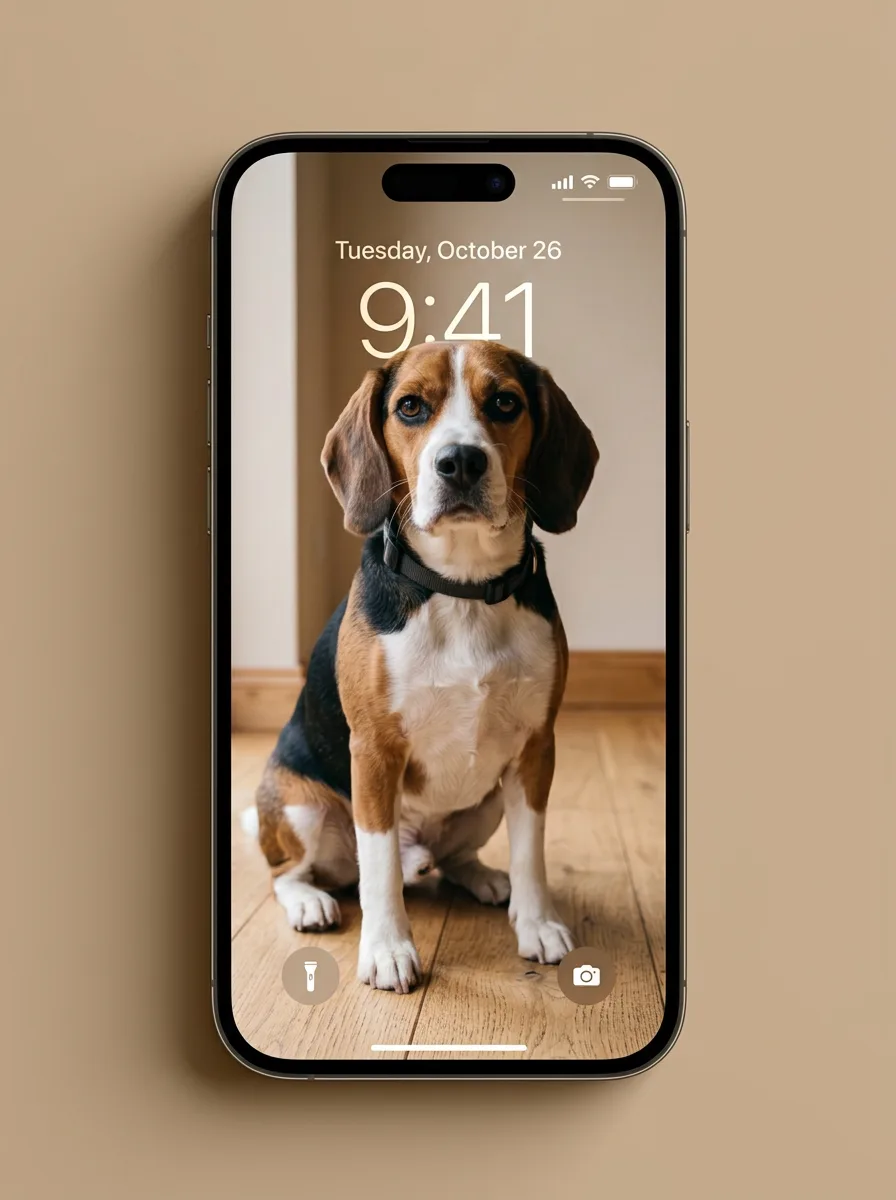 nano-banana-2Preview a photo as your phone lock screen
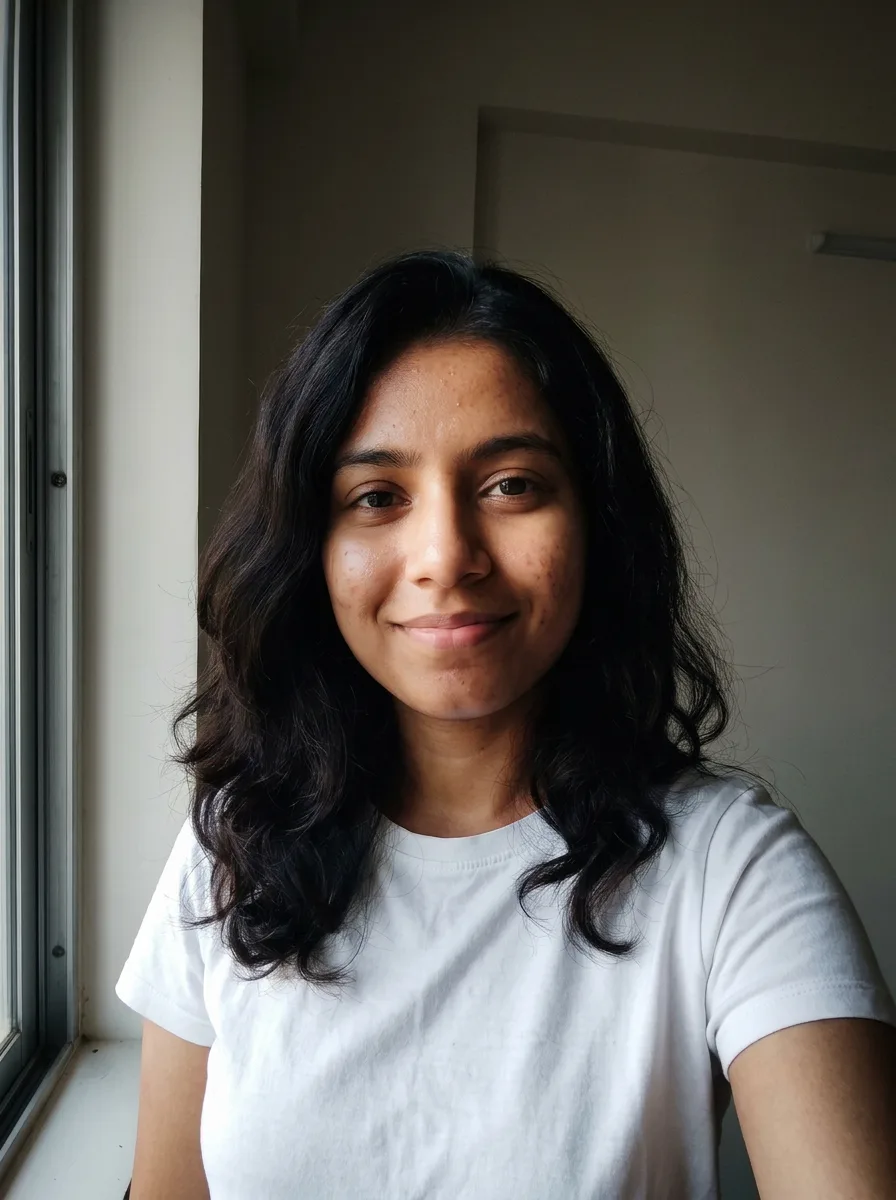 nano-banana-2Relight a portrait with a classic studio lighting setup
 nano-banana-2Reshoot a phone photo with real camera settings
 Nano Banana ProSharpen a blurry or low-resolution photo
 nano-banana-2Try a makeup look on your own photo
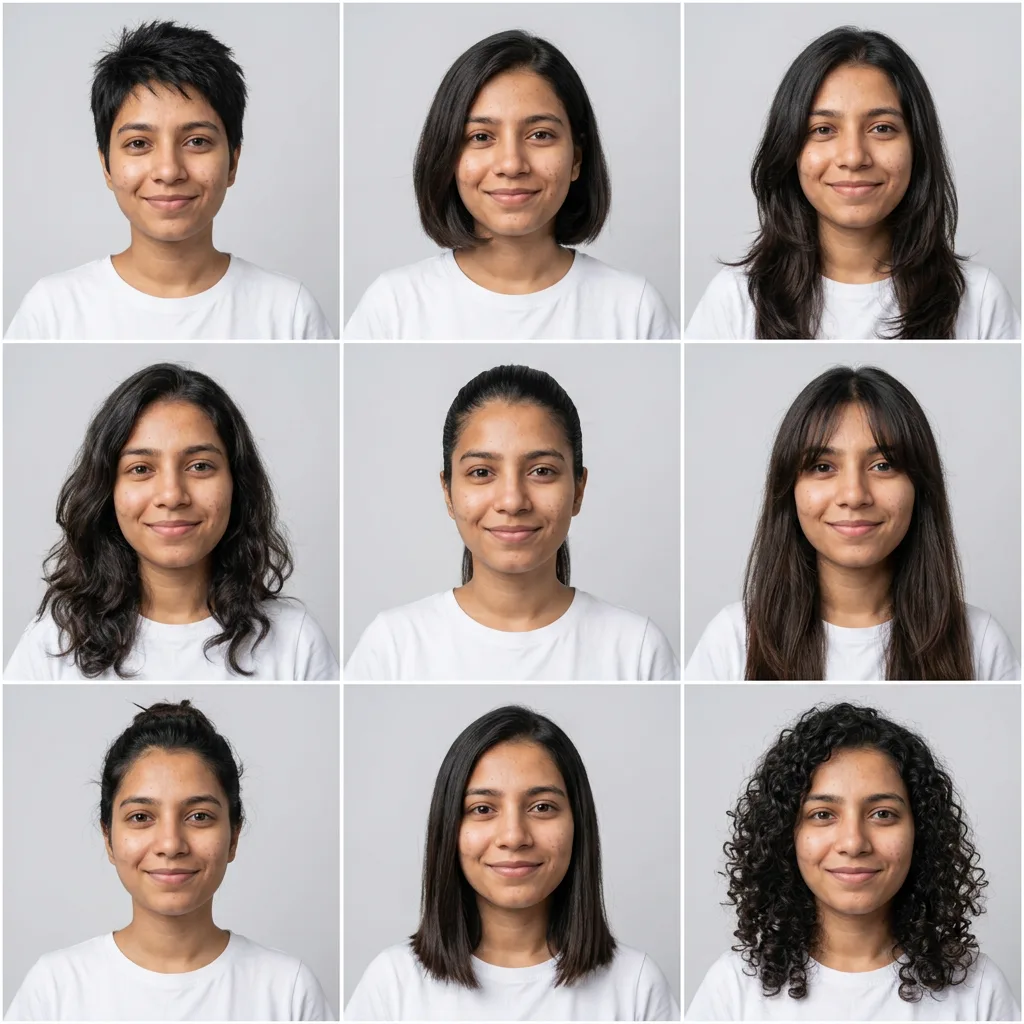 nano-banana-2Try nine hairstyles on your own face
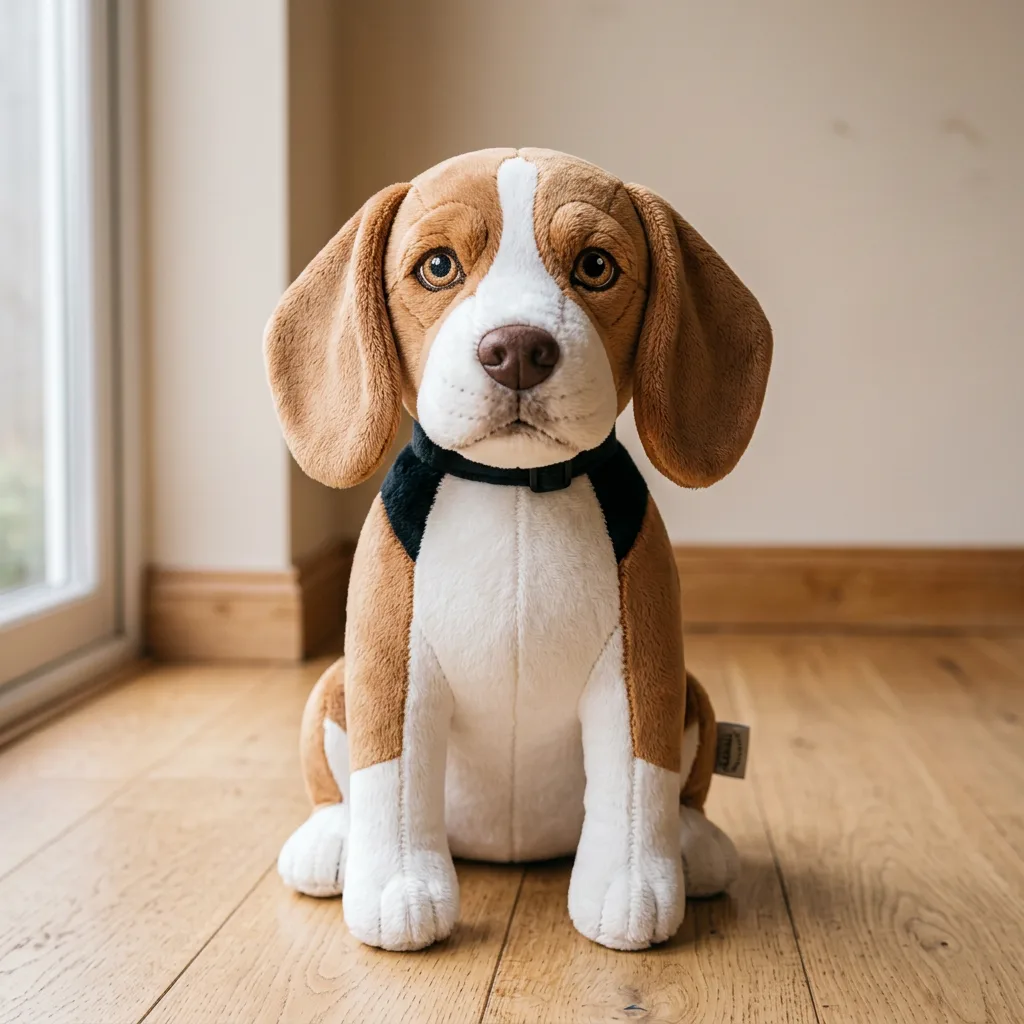 nano-banana-2Turn your pet into a plush toy
What is Image to Video AI?
Image to video starts where a text prompt leaves off: you already have the picture. Upload it, write what moves and what the camera does, and the model renders a short clip that opens on your image. Faces, products and colors stay as you made them, because the model only has to invent the motion.Good starting points are a product shot, a portrait, a landscape or a still from the AI image generator. For a clip from words alone, use the AI video generator.
What people make with it
- Product shots that turn, pour or open
- Portraits with a glance, a smile or wind in the hair
- Travel and landscape stills with moving water and sky
- Moving posts and covers from AI images
Why use Image to Video?
- 9 models to choose from
- Starts on Kling 3.0 Standard by Kuaishou. Also works with Kling 3.0 Pro, Seedance 2.0 Fast, Seedance 2.0, MiniMax Hailuo 2.3, Veo 3.1 Lite, Veo 3.1 Fast and 2 more.
- The cost is shown before you run it
- 190 credits per second on Kling 3.0 Standard. The Generate button shows the exact credits first, so nothing is spent by surprise.
- Failed generations are refunded
- When a generation fails, its credits go back to your balance automatically.
- One credit pool for every tool
- The same credits work across every studio tool and model, and the prompt tools include free prompts every day.
How to use Image to Video
Three steps from an idea to a finished result.
- 11. Upload the picture the clip should open on
- 22. Write the motion: what moves, how fast, and what the camera does
- 33. Pick a model and a length, check the credits on the button, and generate
Tips for better results
- Spend your words on movement. Describing what is already in the picture can make the model redraw it.
- Ask for one or two motions per clip, such as "the dog's ears flap as it runs, the camera tracks alongside". A long list of actions tends to warp hands and faces.
- Name the camera: "locked-off shot", "slow orbit to the left", "dolly back to reveal the room".
- Match the photo to the clip shape you want: a tall picture for 9:16 Reels and Shorts, a wide one for 16:9.
- Test the motion on Veo 3.1 Lite at 4 seconds, then render the version you keep on Kling 3.0 Pro or Veo 3.1 Fast.
Frequently asked questions
What people ask before they use Image to Video.
1What does image to video do?
2Which model should I pick?
3How long are the clips?
4How much does a clip cost?
5Will the clip have sound?
6Can I animate a photo of someone else?
7Can I use the clips commercially?
Try Image to Video now
190 credits per second on Kling 3.0 Standard. You see the exact credits before you generate.
Open Image to Video