Image to Image AI
Upload a picture and describe what to make from it. Keep its layout, its subject or only its style, and get a new image on Nano Banana, FLUX.2 or Seedream.
Use the first image as the starting point and keep .
The picture the new image starts from. Add up to two more for style or detail.
- Model
- Nano Banana · Google
- Cost
- 60 credits
Prompt sent to the model
Your results appear here when you press Generate.
More AI tools
Prompt library
Prompts with the image each one made, ready to copy.
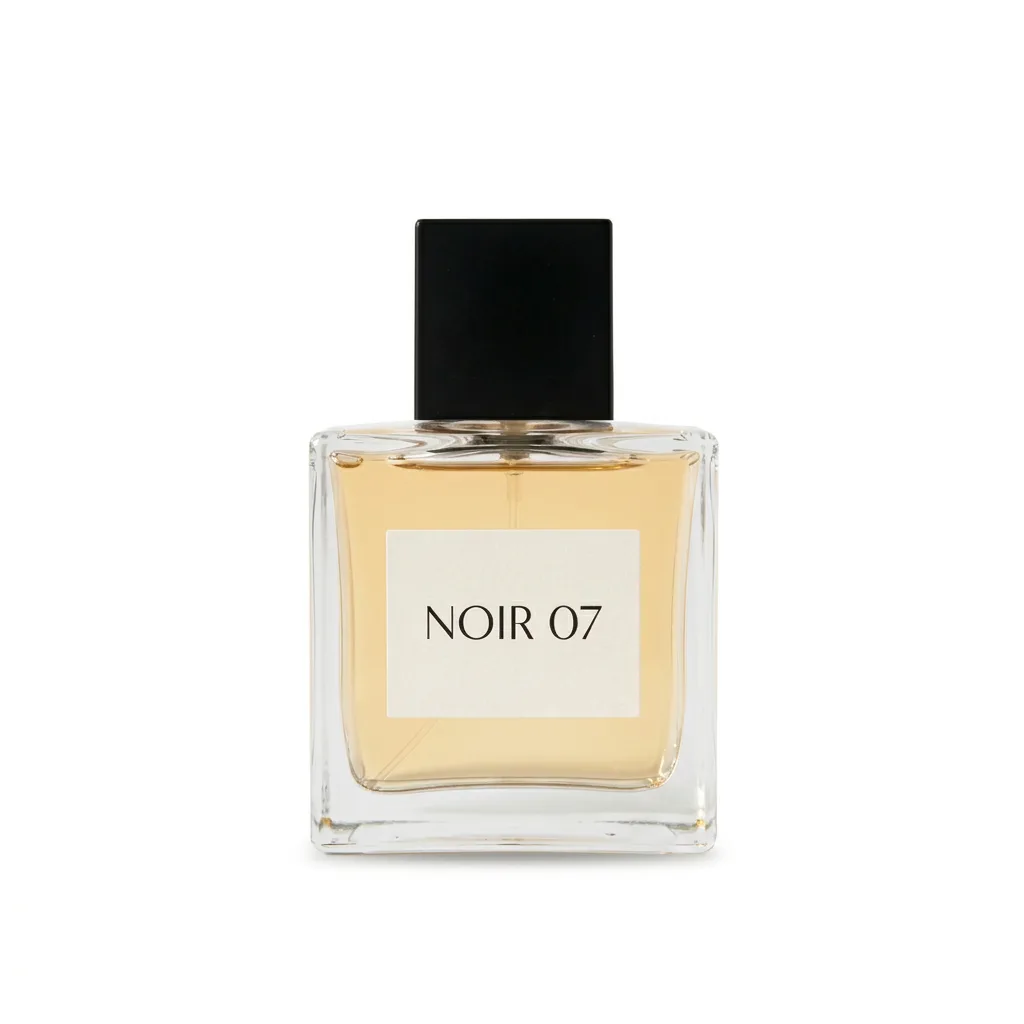 Nano Banana ProCut a product out onto a clean white background
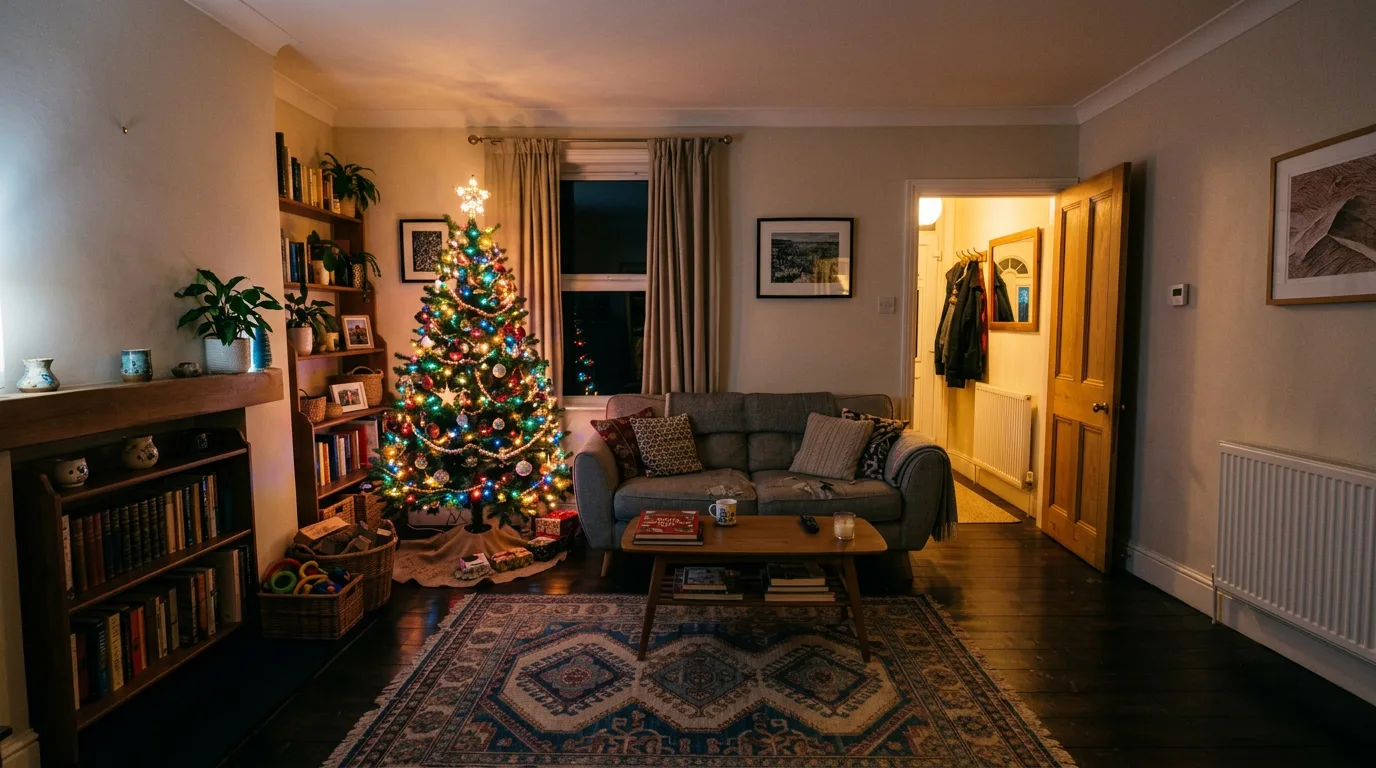 nano-banana-2Extend a photo beyond its edges
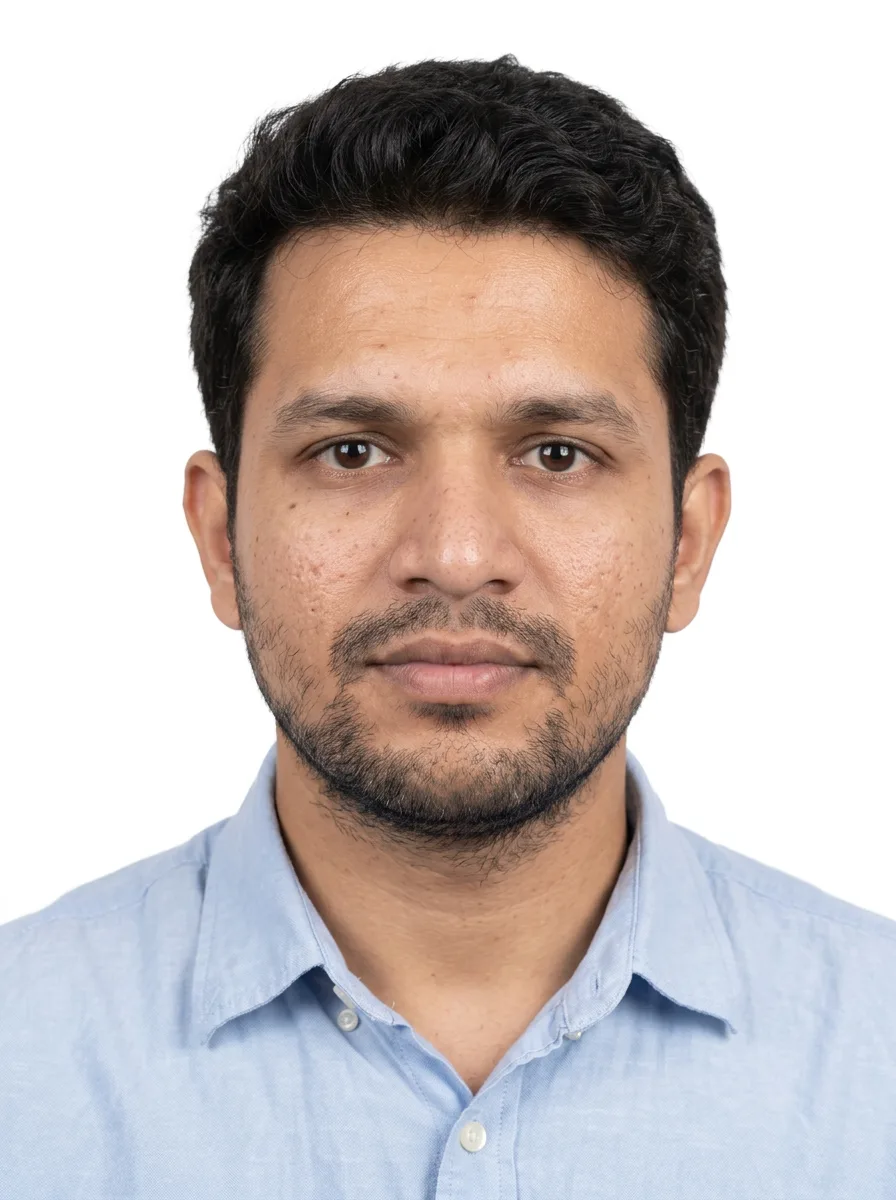 nano-banana-2Passport-style ID photo from a selfie
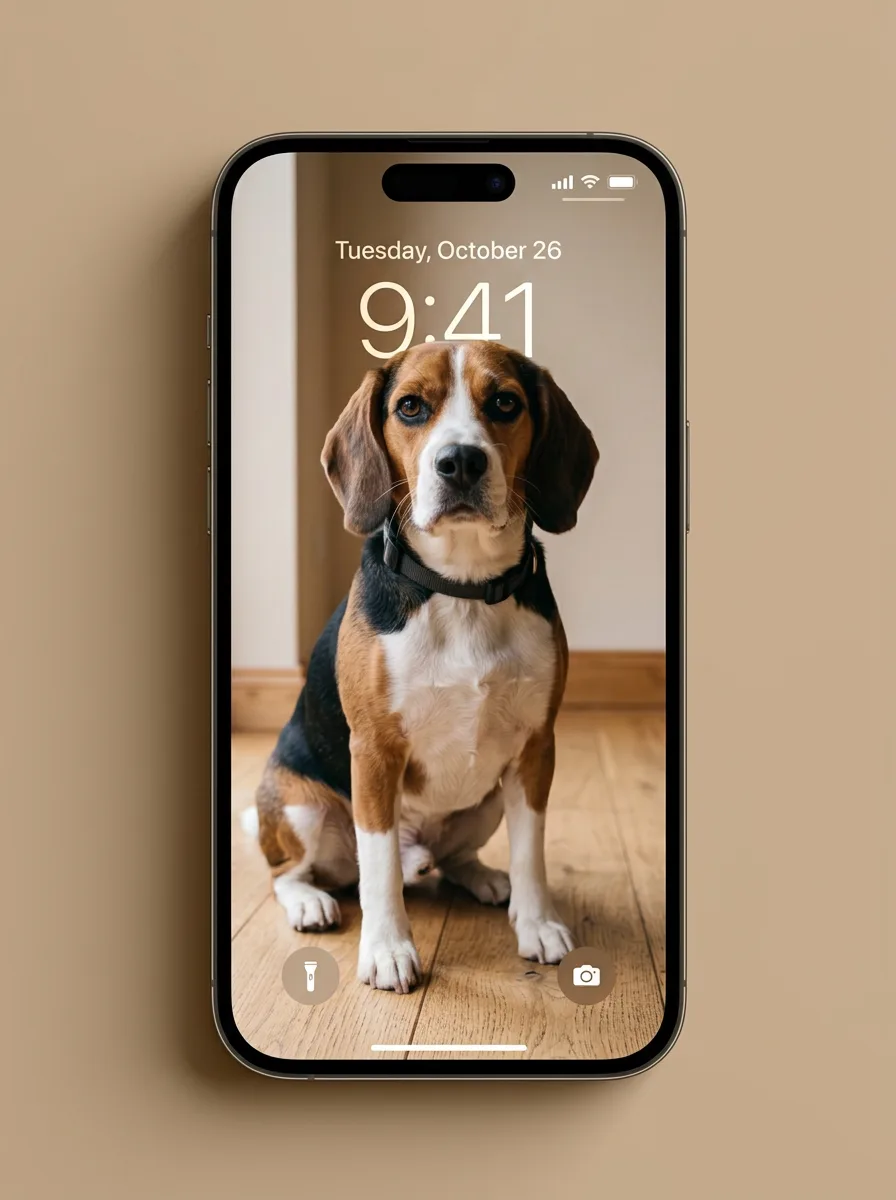 nano-banana-2Preview a photo as your phone lock screen
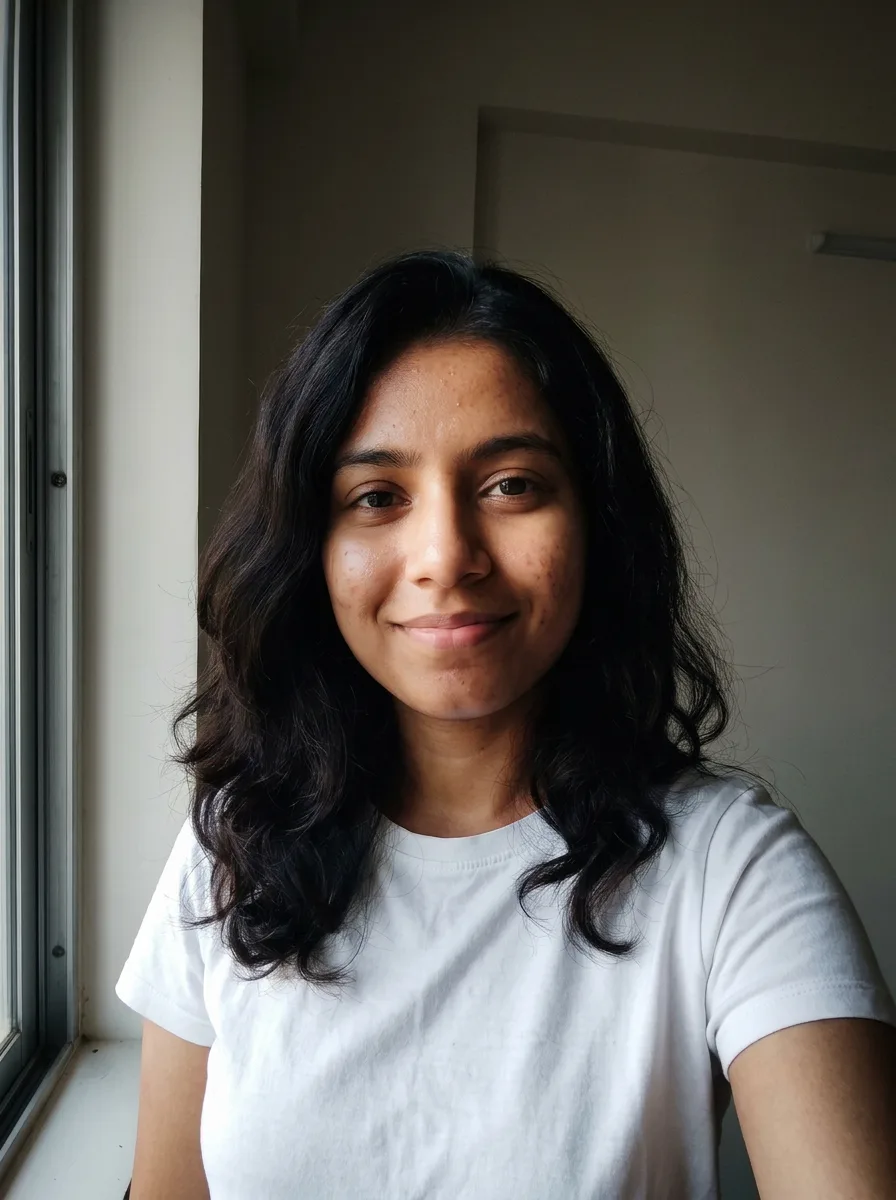 nano-banana-2Relight a portrait with a classic studio lighting setup
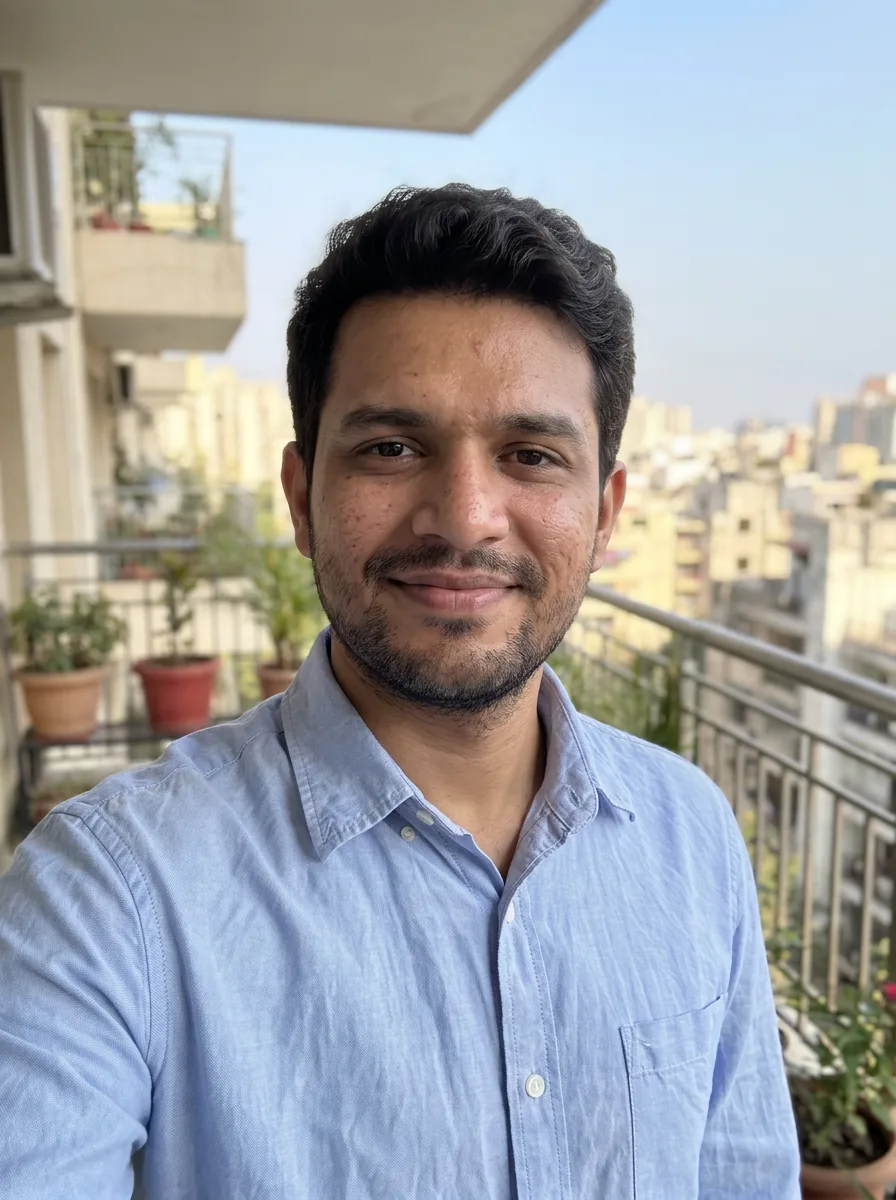 nano-banana-2Reshoot a phone photo with real camera settings
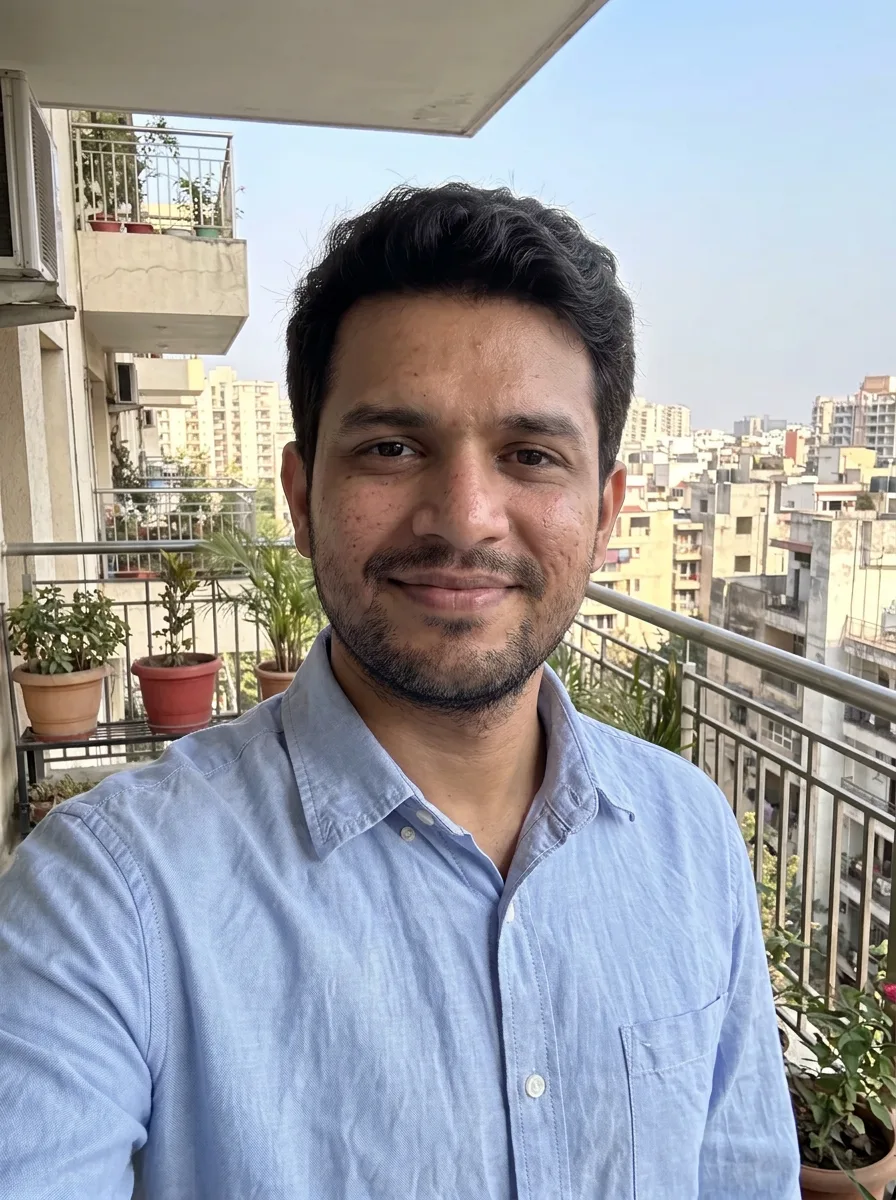 Nano Banana ProSharpen a blurry or low-resolution photo
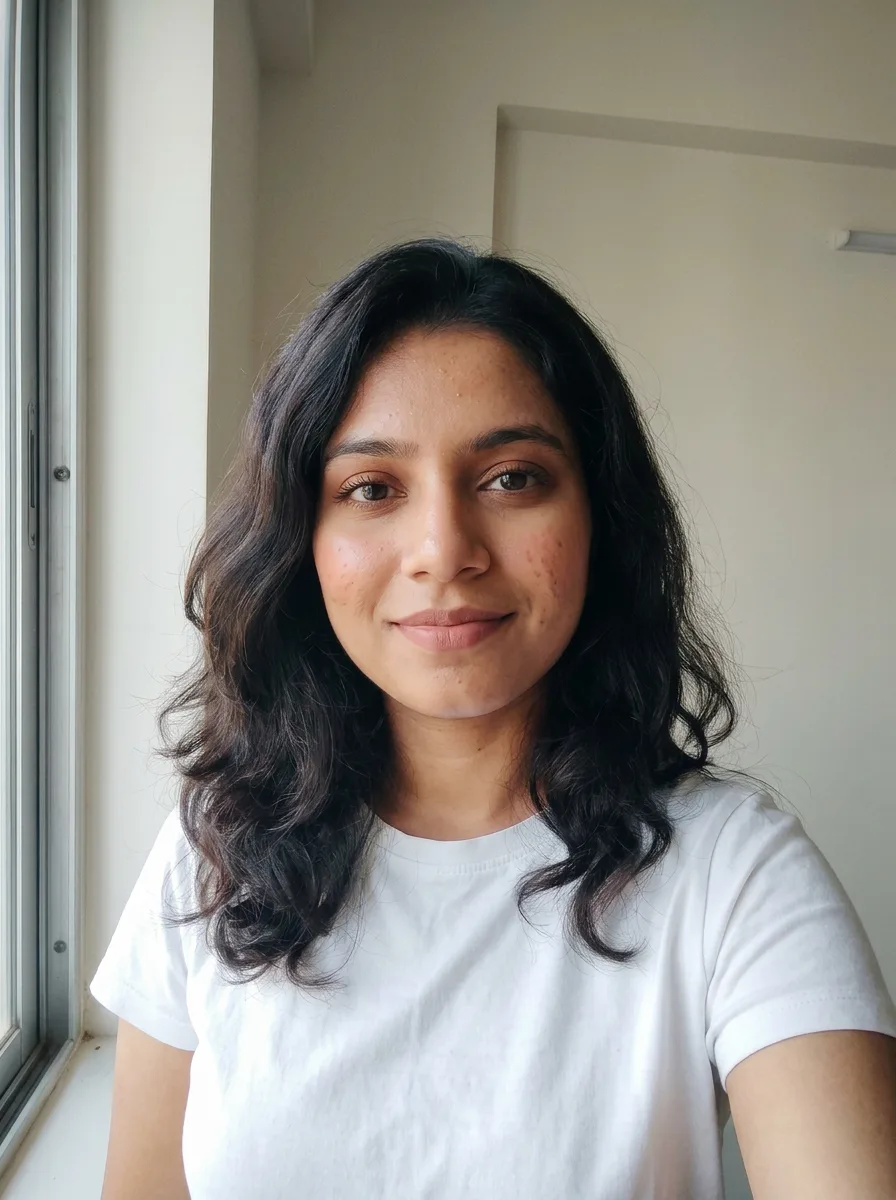 nano-banana-2Try a makeup look on your own photo
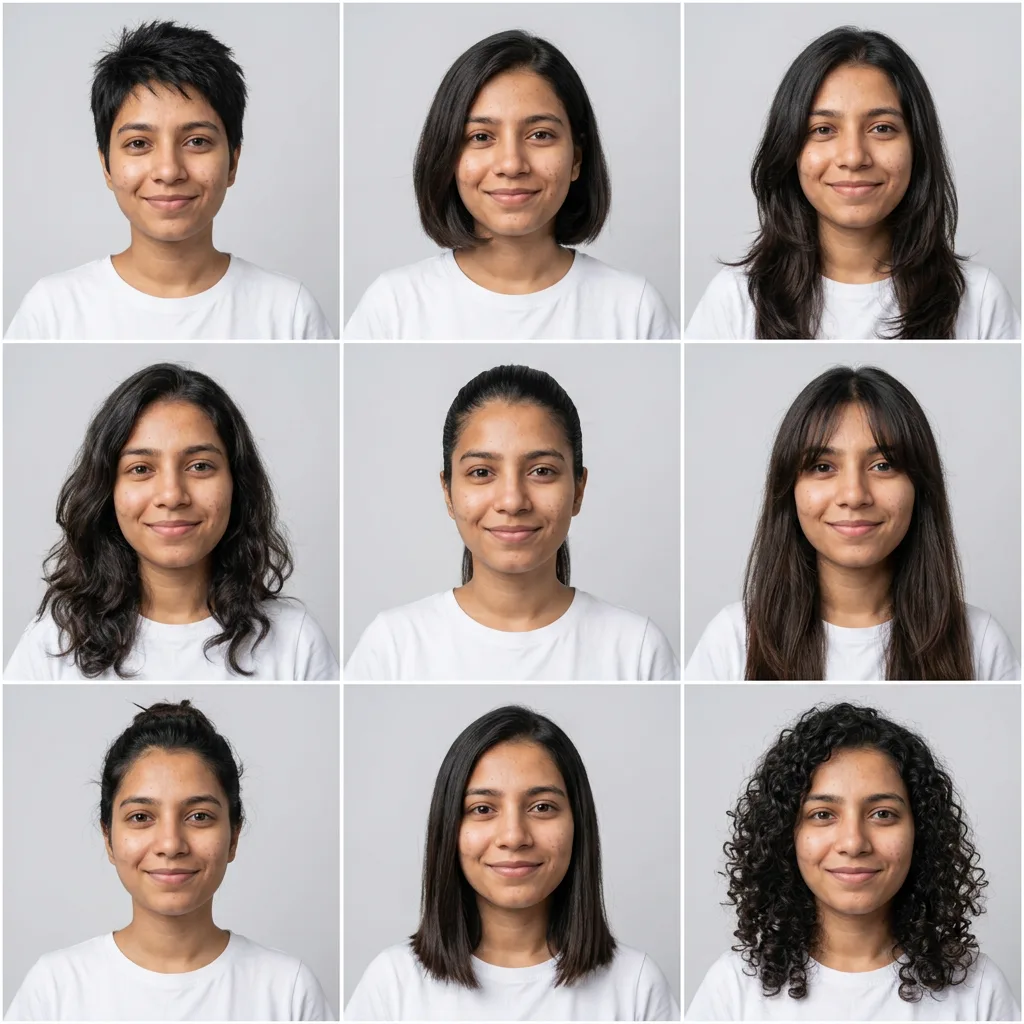 nano-banana-2Try nine hairstyles on your own face
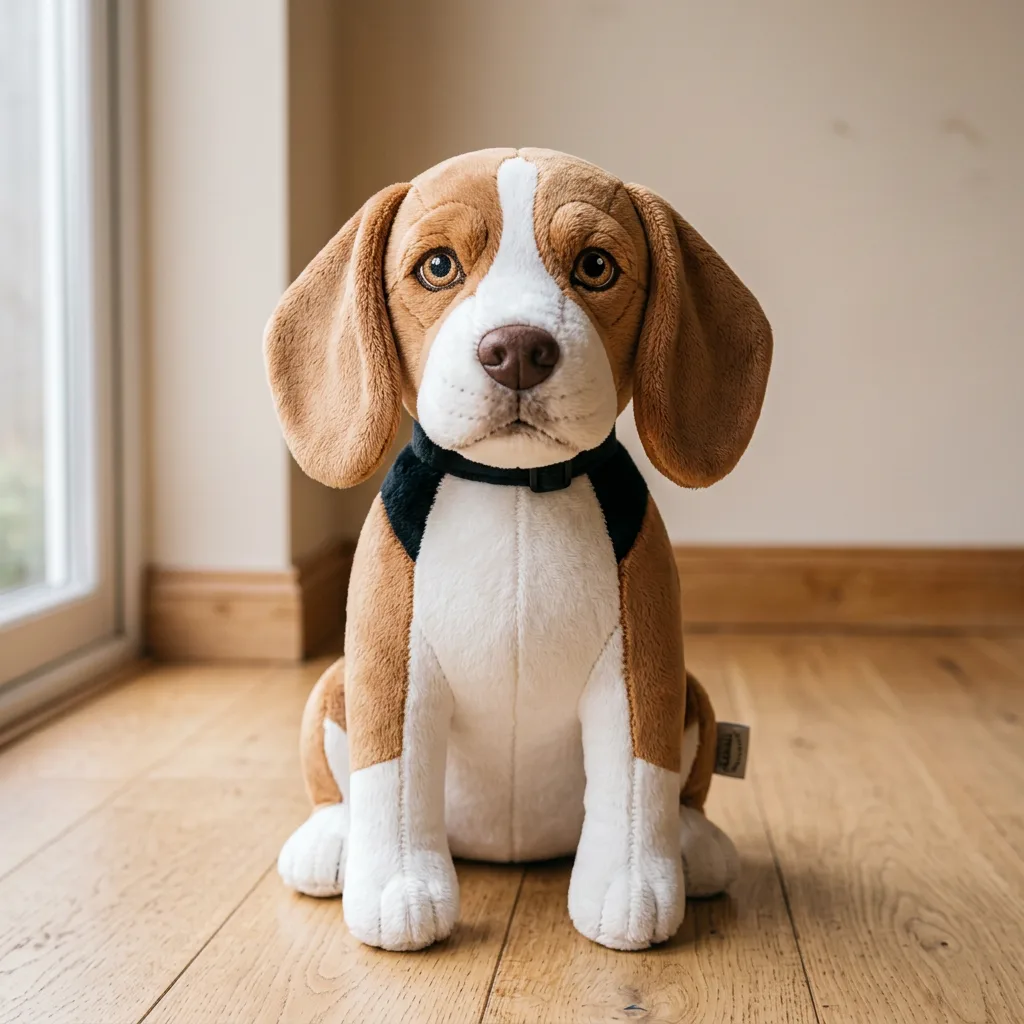 nano-banana-2Turn your pet into a plush toy
What is Image to Image AI?
Image to image starts from a picture instead of a blank prompt. Upload a photo, a sketch or an earlier generation, say what the new version should be, and choose what to carry over: the layout, the subject, or the colors and style. The model draws a new image that follows your words and borrows the rest from the reference.Use it when the change is big, like a new season, a new medium or a new setting. For a small fix where everything else must stay exactly as it is, the AI photo editor is the better fit.
What people make with it
- Sketches turned into finished renders
- Product shots restaged in new settings
- Photos redrawn as paintings, comics or 3D
- Variations of an earlier generation
Why use Image to Image?
- 8 models to choose from
- Starts on Nano Banana by Google. Also works with Nano Banana 2, Nano Banana Pro, GPT Image 2, FLUX.2 [pro], Seedream 4.5, Seedream 5.0 Lite and 1 more.
- The cost is shown before you run it
- 60 credits per image on Nano Banana. The Generate button shows the exact credits first, so nothing is spent by surprise.
- Failed generations are refunded
- When a generation fails, its credits go back to your balance automatically.
- One credit pool for every tool
- The same credits work across every studio tool and model, and the prompt tools include free prompts every day.
How to use Image to Image
Three steps from an idea to a finished result.
- 11. Upload the picture to start from, plus up to two more if you want to borrow a style or an object
- 22. Describe the new image and pick what to keep from the reference
- 33. Choose a model and generate, then try a different "keep" option to compare
Tips for better results
- Pick "composition and layout" to restage a scene, "the main subject" to put a person or product somewhere new, and "colors and art style" to borrow a look for a different subject.
- Describe the result, not the steps: "a watercolor painting of this street in autumn" works better than "make it watercolor and change the season".
- A rough sketch or collage is a fine reference. Say what it is, for example "turn this pencil sketch into a finished product photo".
- Faces drift on big changes. When a person must stay recognizable, use Nano Banana or Seedream 4.5 and add "keep the face the same".
Frequently asked questions
What people ask before they use Image to Image.
1What is image to image?
2How is it different from the AI photo editor?
3Which model should I use?
4Which files can I upload?
5How much does it cost?
6Can I upload any picture?
Try Image to Image now
60 credits per image on Nano Banana. You see the exact credits before you generate.
Open Image to Image