AI Real Estate Video Generator
Turn listing photos into smooth walkthrough-style clips: slow dolly moves, drone reveals and twilight exteriors. Made for agents and short-term rentals.
through the space in the photo.
950 credits
- Model
- Kling 3.0 Standard · Kuaishou
- Cost
- 950 credits
Prompt sent to the model
Slow forward dolly through the space in the photo. Smooth, stable real estate cinematography, bright natural light, no people, no changes to the architecture or furniture.
A sample this tool made. Your results appear here when you press Generate.
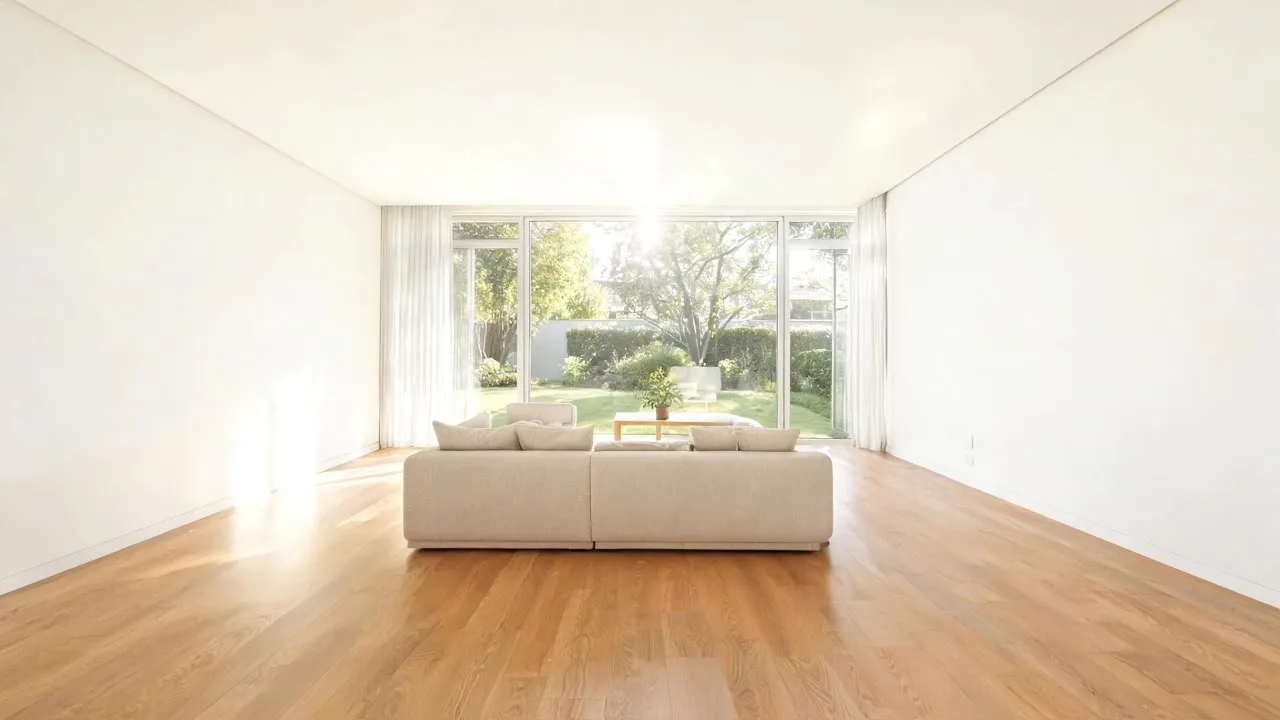
 Sample start photoVideo
More AI tools
Prompt library
Prompts with the image each one made, ready to copy.
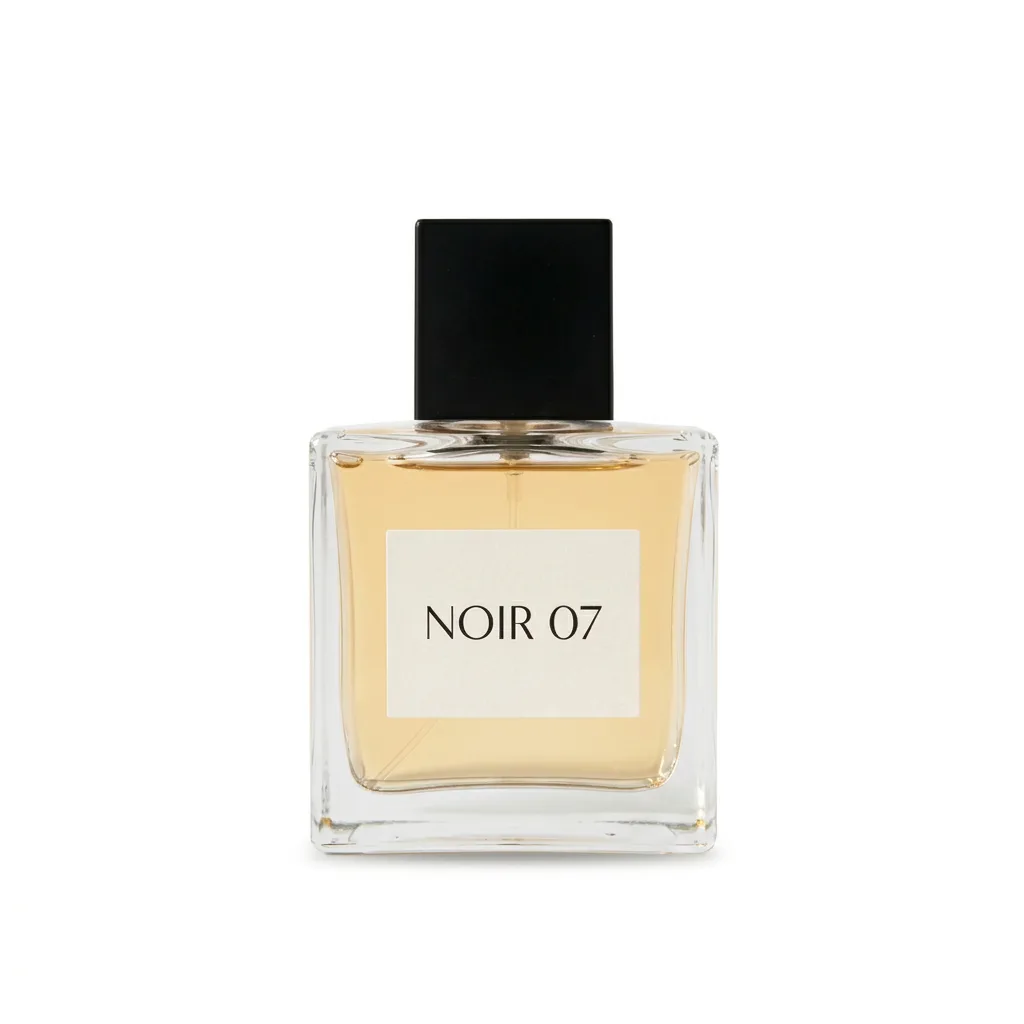 Nano Banana ProCut a product out onto a clean white background
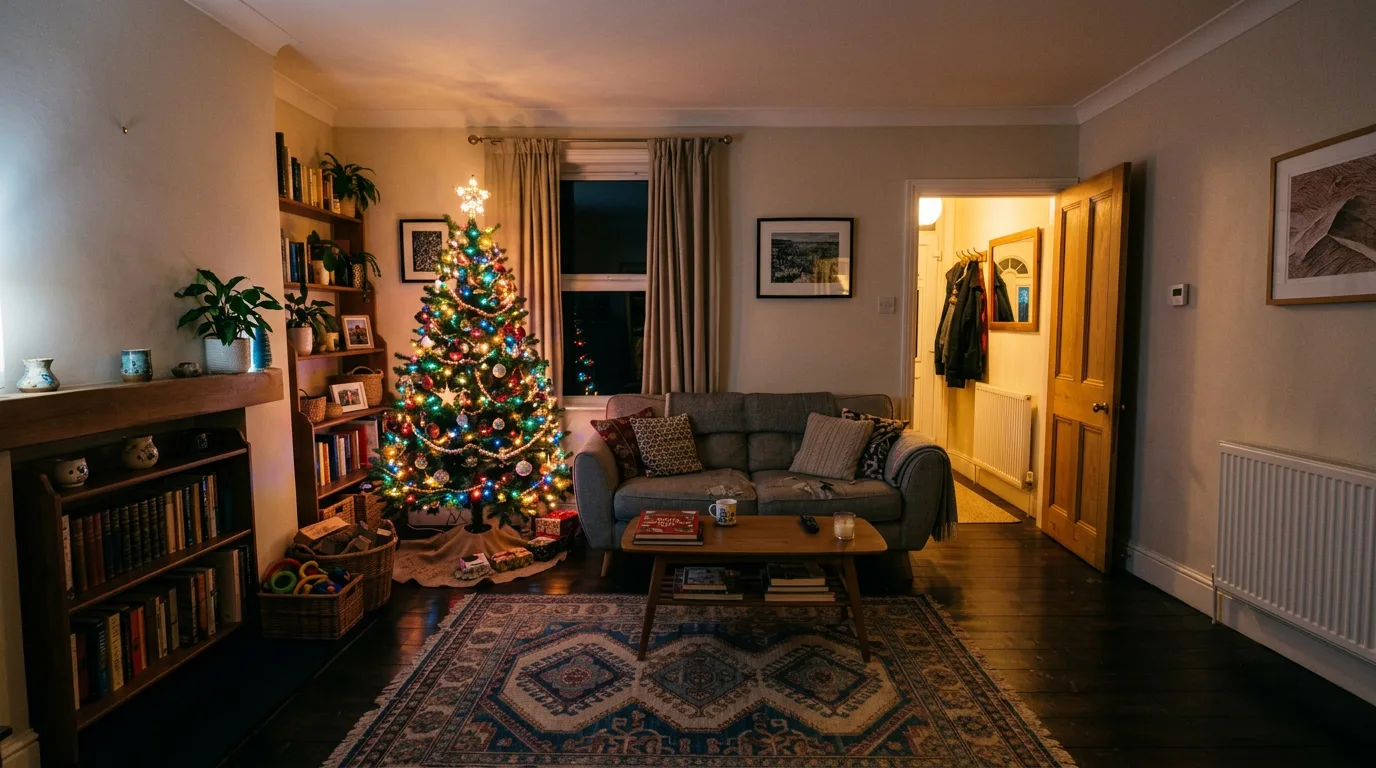 nano-banana-2Extend a photo beyond its edges
 nano-banana-2Passport-style ID photo from a selfie
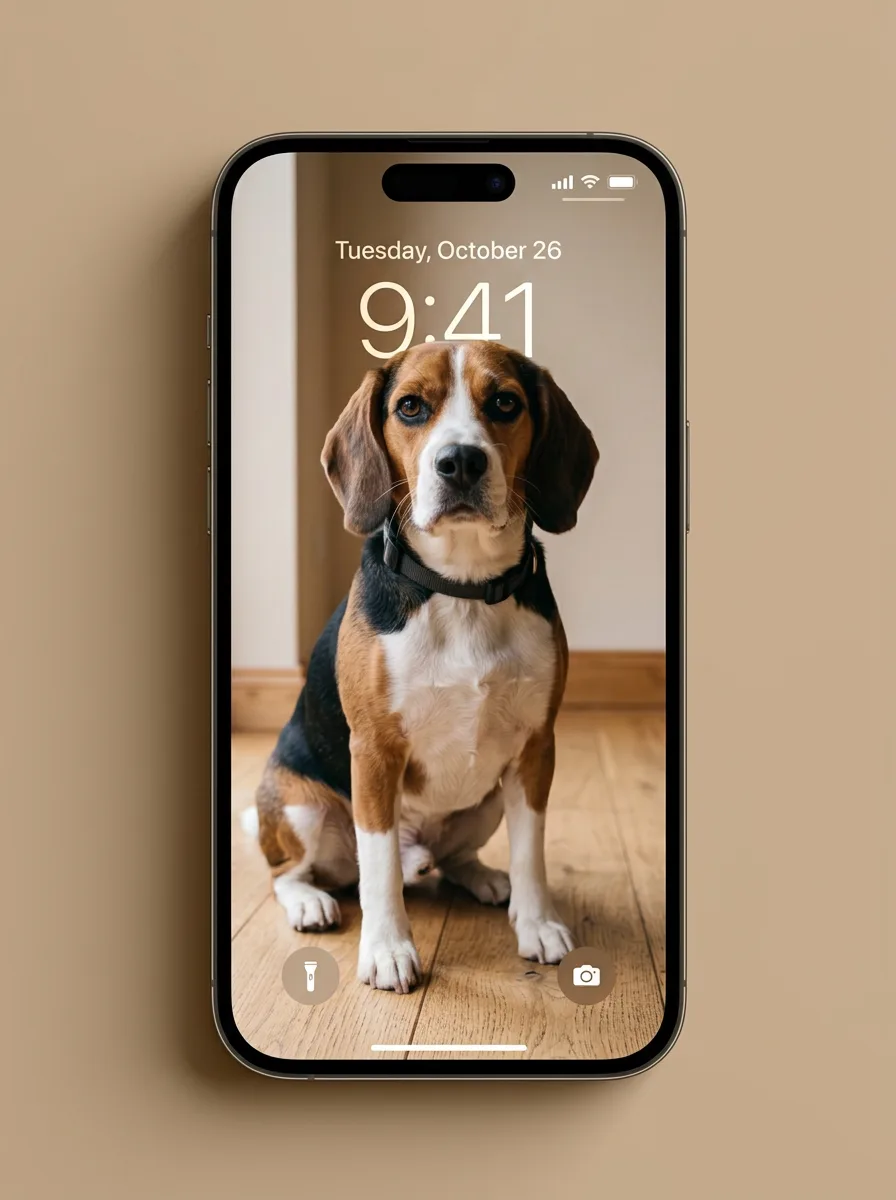 nano-banana-2Preview a photo as your phone lock screen
 nano-banana-2Relight a portrait with a classic studio lighting setup
 nano-banana-2Reshoot a phone photo with real camera settings
 Nano Banana ProSharpen a blurry or low-resolution photo
 nano-banana-2Try a makeup look on your own photo
 nano-banana-2Try nine hairstyles on your own face
 nano-banana-2Turn your pet into a plush toy
What is AI Real Estate Video Generator?
A listing with video gets more attention than one with only photos. Upload a listing photo, pick a camera move, and get a smooth clip that keeps the room exactly as it is. Stitch several together for a tour.
What people make with it
- MLS and portal listings
- Instagram and TikTok reels
- Short-term rental listings
Why use Real Estate Video?
- 9 models to choose from
- Starts on Kling 3.0 Standard by Kuaishou. Also works with Kling 3.0 Pro, Seedance 2.0 Fast, Seedance 2.0, MiniMax Hailuo 2.3, Veo 3.1 Lite, Veo 3.1 Fast and 2 more.
- The cost is shown before you run it
- 190 credits per second on Kling 3.0 Standard. The Generate button shows the exact credits first, so nothing is spent by surprise.
- Failed generations are refunded
- When a generation fails, its credits go back to your balance automatically.
- One credit pool for every tool
- The same credits work across every studio tool and model, and the prompt tools include free prompts every day.
01
02
03
04
How to use Real Estate Video
Three steps from an idea to a finished result.
- 11. Upload a wide listing photo
- 22. Pick a camera move
- 33. Generate one clip per room and edit them together
Tips for better results
- Wide-angle, well-lit photos animate best.
- Keep moves slow. Fast moves reveal AI artifacts.
- Do not use AI to change rooms in ways that misrepresent the property.
Frequently asked questions
What people ask before they use Real Estate Video.
1Can I use AI video in listings?
Yes, as long as it does not misrepresent the property. Keep the preset's 'no changes' wording and check each clip.
2How much does it cost?
Each generation uses credits from your plan. The exact number shows on the Generate button before you spend anything, and failed generations are refunded automatically. New accounts get free credits to try it.
Try Real Estate Video now
190 credits per second on Kling 3.0 Standard. You see the exact credits before you generate.
Open Real Estate Video